
Zero trust network access for RV remote work means every connection to a work app is checked for who you are and whether your device is healthy, no matter which network you are on. Instead of trusting a tunnel, you grant access app by app. That suits campground Wi-Fi, cellular, and satellite links that change from week to week.
What does zero trust network access mean for an RV office?
Zero trust network access (ZTNA) means no network is trusted by default, and each request for a work resource is approved on its own. The approval depends on your identity, the state of your device, and a policy you set. Where you are connected, whether a campground router, a phone hotspot, or a satellite dish, plays no part in the decision.
A traditional office security model assumes that anything inside the building network is mostly safe. An RV has no such network. Your office is a laptop on whatever connection is available, and the network changes every time you move.
In practice, ZTNA gives you three things:
- Identity checks: you sign in through an identity provider with multi-factor authentication, ideally a hardware security key or passkey.
- Device checks: access is allowed only if the laptop meets your rules, such as an encrypted disk, a current operating system, and a screen lock.
- Per-app access: you reach the specific tools you need, such as an accounting system, a file server, or an admin dashboard, and nothing else on the network.
Why does a traditional VPN fall short on campground Wi-Fi and cellular links?
A traditional VPN falls short because it was built for a stable connection and a fixed location, and an RV office has neither. It builds one encrypted tunnel to a gateway and then treats everything on the other end as reachable. That model creates several specific problems on the road.
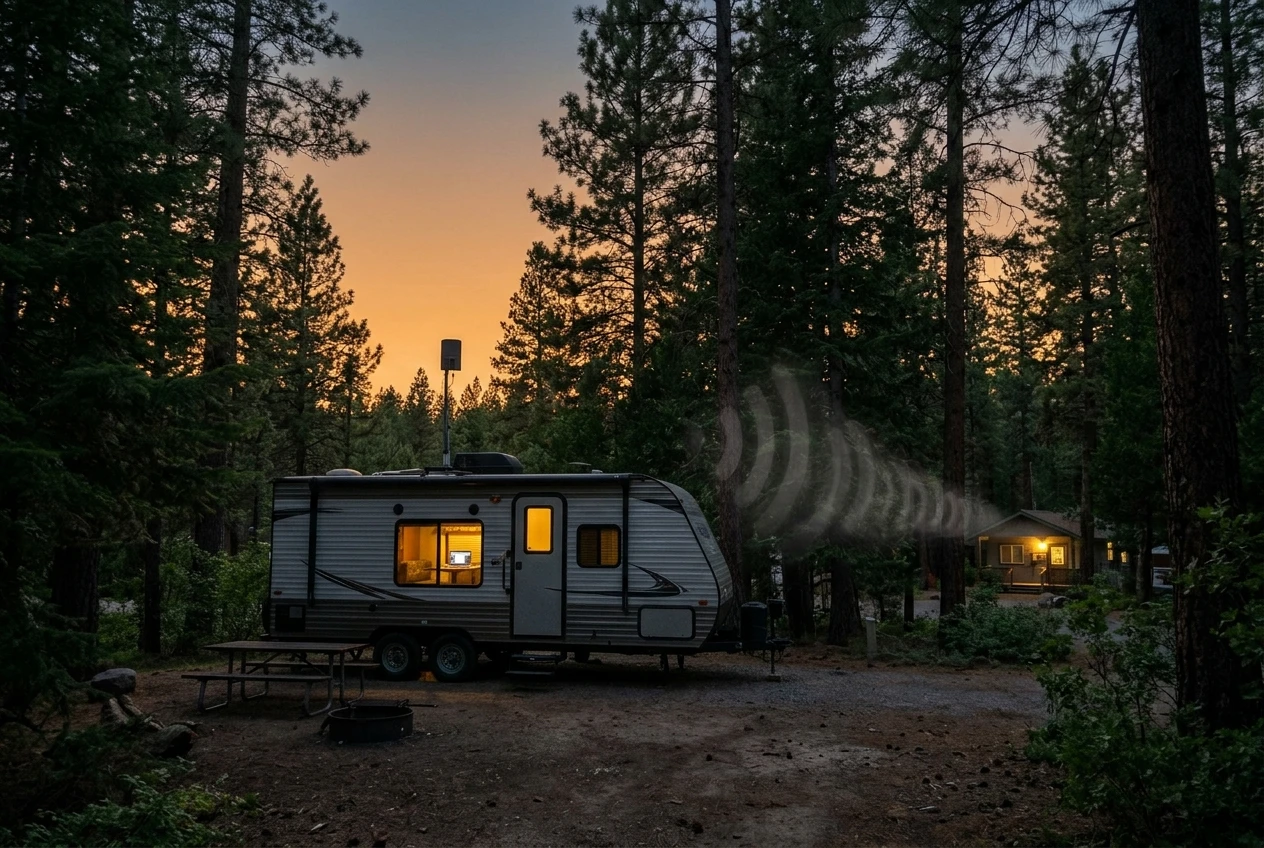
Dropped tunnels. Cellular handoffs, weak campground Wi-Fi, and satellite obstructions all interrupt the tunnel. Many always-on VPN clients then block traffic until they reconnect, so a two-second dropout can turn into a minute of waiting or a failed video call.
Full-tunnel overhead. If all your traffic goes through the VPN, a video call or a software update crosses the tunnel and a remote gateway before it reaches its destination. That adds latency and uses data that may be capped on a cellular or satellite plan.
Broad access once connected. A VPN session typically opens a wide path into the network behind it. If a laptop on shared campground Wi-Fi is compromised, that path is available to whoever controls it.
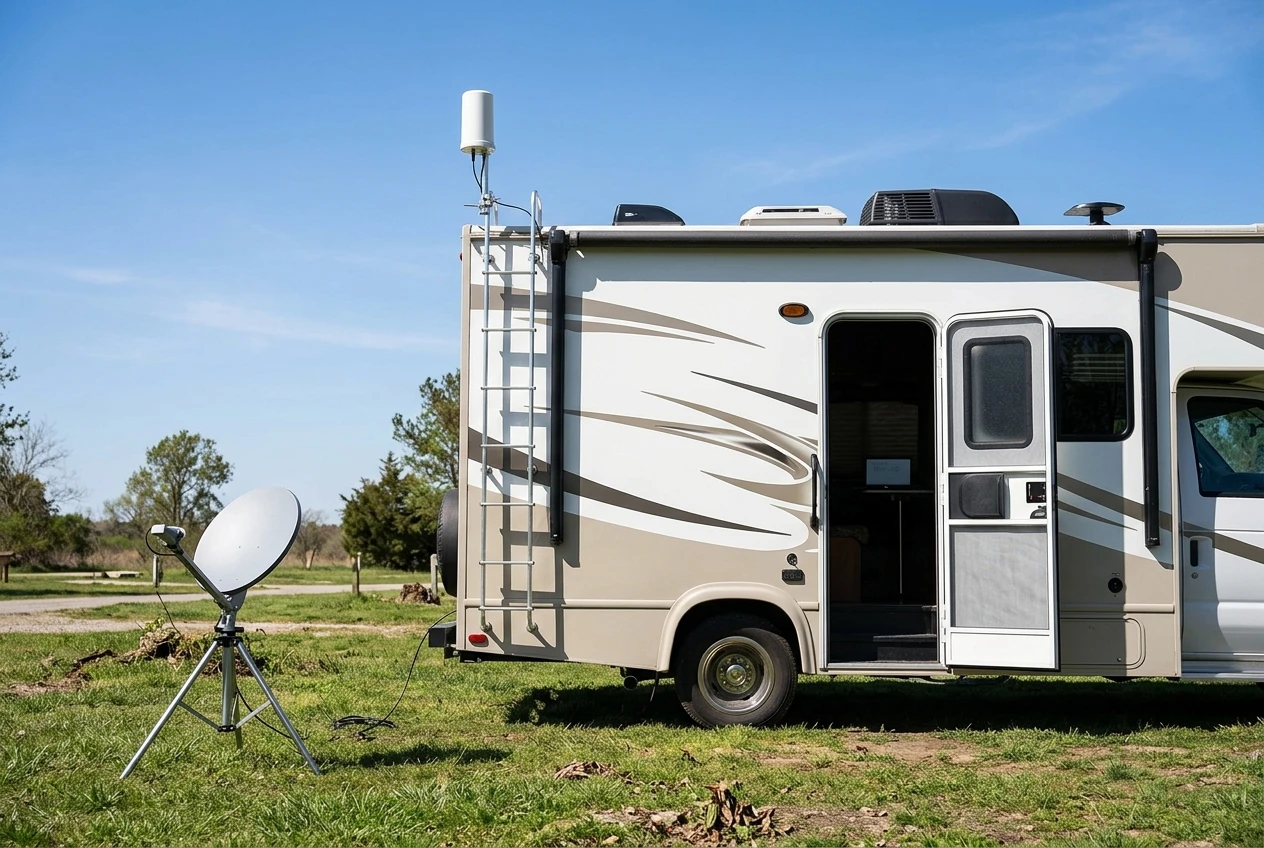
Networks you do not control. Campground Wi-Fi often has captive portals, client isolation, blocked ports, and shared address space. Cellular carriers commonly put many customers behind one shared address, which makes inbound connections to your gear difficult. VPN protocols that need specific ports or inbound routes may not work at all.
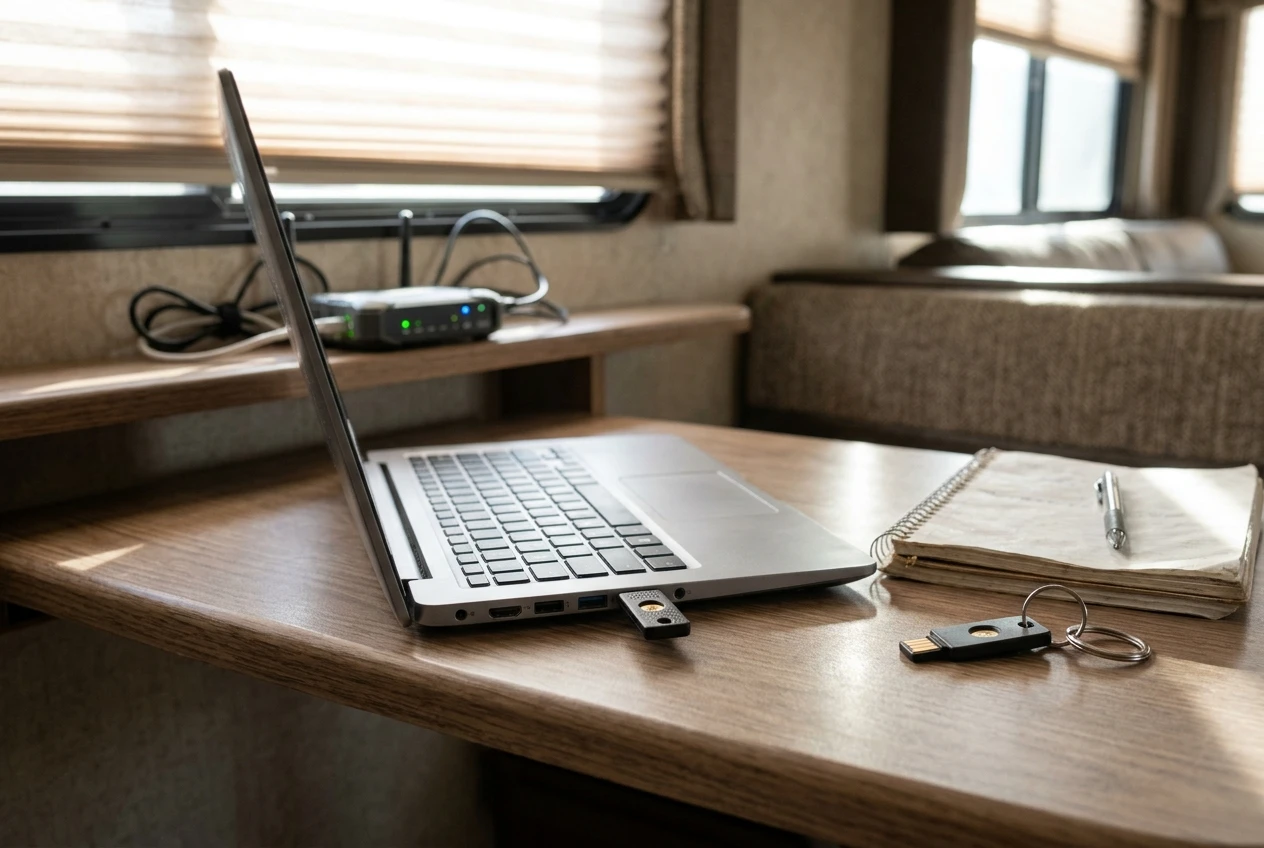
ZTNA addresses this because it connects per app, usually over standard HTTPS or outbound-only connections, and it re-evaluates access instead of relying on one long-lived tunnel.
What do you need in place before you start?
Before you start, you need an identity provider, a managed list of the apps you want to protect, a laptop you can configure, and a backup connection. Gathering these first keeps the setup order below from stalling halfway.
- An identity provider. This is the account system that signs you in. A solo owner can use a business email platform’s built-in single sign-on. An employee will be using the employer’s.
- An inventory of what you access. List every work app, file store, remote desktop, and admin panel you use, and mark which ones are cloud services and which sit on a server or device you own.
- A laptop you control. Full-disk encryption, automatic updates, and a strong login password or biometric need to be on. A work laptop kept separate from personal use makes device checks much simpler.
- A hardware security key or passkey setup. Two keys are better than one, with the spare stored somewhere other than your bag.
- At least two ways online. Campground Wi-Fi alone is not enough. A cellular hotspot or router plus a second carrier or satellite gives the access policy something to fall back on. Our guide to RV traffic shaping for satellite and cellular covers how to spend limited data on those links.
How do you set up zero trust access, one step at a time?
Set it up in this order: secure identity first, then device rules, then app access, then testing on real networks. Each step makes the next one safer, and doing them out of order tends to leave gaps.
- Turn on strong multi-factor authentication for your identity provider. Register your hardware keys or passkeys, and remove SMS codes as an option if the platform allows it. Sign-in is now the front door for everything else.
- Put your cloud apps behind single sign-on. Where a tool supports it, require sign-in through your identity provider instead of separate passwords. Retire shared logins and old accounts as you go.
- Choose a ZTNA service for anything that is not a cloud app. If you have a file server, a home-office machine, a network storage box, or an internal dashboard, a ZTNA service can publish it to authorized users without opening ports on a router. Tailscale and Cloudflare Zero Trust are two examples; compare current features and plans yourself before you commit.
- Install a connector near the resource. The connector is a small program on the server or device you are protecting. It makes outbound connections to the service, which is why it works behind carrier-grade NAT or a campground router where you cannot forward ports.
- Define a policy per app. Name which user can reach which app, require your device to pass its checks, and set how often you must sign in again. Start narrow and widen access only when something legitimate is blocked.
- Enroll your laptop. Install the service’s client, register the device, and confirm the posture checks work. Test by turning off disk encryption or a screen lock in a safe way on a spare machine if you can, and see that access is refused.
- Add DNS filtering. A filtering resolver blocks known malicious domains regardless of the network you join. It does not replace the access policy, but it covers general browsing.
- Test on the networks you actually use. Try the campground Wi-Fi, a phone hotspot, and your second carrier or satellite link. Write down anything that fails, such as a captive portal that blocks the client until you sign in to it.
Which approach fits a remote employee, and which fits a solo business owner?
A remote employee follows the employer’s setup and controls the habits around it, while a solo owner builds and runs the whole system. The two groups face different decisions, summarized here.
| Remote employee | Solo business owner |
|---|---|---|
Who chooses the tools | The employer’s IT or security team | You |
Identity provider | Provided by the employer | You pick one and manage accounts |
Device rules | Set by the employer, often enforced automatically | You write and enforce them |
Your main tasks | Keep the laptop updated, protect your keys, report problems | Design policies, enroll devices, maintain connectors |
Biggest risk | Working around company controls on a bad connection | Skipping steps because nobody else checks |
If you are an employee
You usually cannot install your own access service on a company laptop, and you should not try. Ask the security team how remote access is handled, what to do if the connection drops, and whether a second internet source is allowed for work. Then focus on what you control: a hardware key kept safe, updates installed promptly, a screen lock set, and no work on a personal device unless it is approved.
If the company still uses an always-on VPN, you can ask whether per-app access is planned. Raising a specific problem, such as repeated disconnects on satellite, is more useful than asking for a different product.
If you own the business
You have the most freedom and the most responsibility. Start with identity and cloud apps, since that is where most small businesses keep their work. Add a ZTNA service only for resources that are not already cloud-based. Keep a short written record of who has access to what, because that list is what you review when a laptop is lost or a contractor leaves.
If you work with a contractor or assistant, give them their own accounts and their own device checks. Shared logins make it impossible to remove one person’s access cleanly.
How do you keep access working when your connection drops or changes?
Keep access working by choosing policies that tolerate short interruptions and by having a second link that is already configured. Most dropped-connection pain comes from sessions that are too strict or from a backup that was never tested.
- Set sensible session lengths. A policy that forces a new sign-in every few minutes will lock you out after each cellular hiccup. Require re-authentication on a longer schedule for low-risk apps and a shorter one for sensitive tools like banking or admin consoles.
- Use per-app connections instead of a full tunnel. Only the traffic that needs protection goes through the access service. Video calls and updates travel directly, which saves data and latency.
- Prefer clients that reconnect on their own. After a network change, the client should re-establish its connection without a manual restart. Test this by switching between Wi-Fi and a hotspot during a session.
- Keep the backup link enrolled. Your second carrier or satellite connection should already be known to your devices, with any captive portal or login steps documented, so failover does not require troubleshooting under pressure.
- Cache what you need offline. Keep important documents synced locally so a short outage does not stop your work, and so you are not tempted to loosen security to regain access fast.
- Know your fallback for lockouts. Store recovery codes and your spare hardware key in a safe place that does not depend on your laptop or phone being available.
What should you check each time you park somewhere new?
Run a short check at every new site, before you open work apps. It takes a few minutes and catches the problems that matter most.
- Pick the connection deliberately. Prefer your own router or hotspot over shared campground Wi-Fi. Use the campground network only as a backup, and never for sensitive work without your access policy active.
- Confirm your device status. Check that updates are installed, the disk is encrypted, and the access client reports a healthy device.
- Complete any captive portal first. Sign in to the portal, then start your access client, so it can reach its service.
- Test one protected app. Open a single internal tool and confirm it loads. If it fails, switch to your second link before assuming the policy is broken.
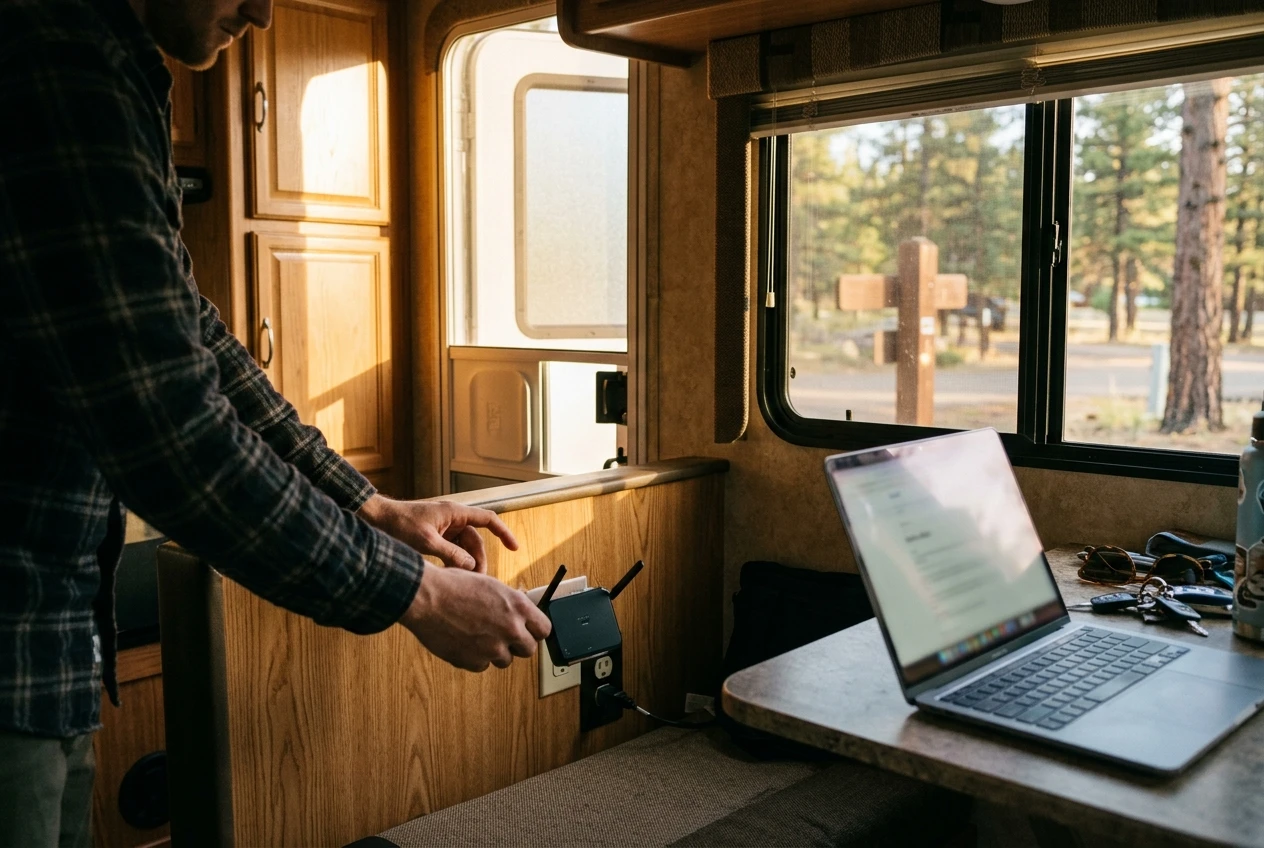
- Check the router and any shared gear. Make sure the router’s admin page is not exposed to the campground network, the default password is changed, and its firmware is current.
- Lock down physical access. Keep the laptop and hardware keys out of sight when you leave the RV, and never leave a key plugged into a laptop that is unattended.
- Review recent sign-ins. Glance at your identity provider’s activity log for sign-ins from places or devices you do not recognize. A new location is expected when you move, but an unknown device is not.
Repeat the same list each time. Because the policy checks identity and device health on every connection, the routine is mostly confirming that your own setup is intact, not judging whether the network is safe.
To learn more about Howard and Pam, click here!







Recent Comments