
How to Lock Down Your Own RV Network Instead of Trusting Campground Wi-Fi. So, let’s discuss how to secure RV wifi network.
Most security advice for RVers stops at “use a VPN on public Wi-Fi.” That advice matters, but it ignores the network you carry with you: the cellular hotspot, the satellite dish, the router, and every device connected to them. If you work from an RV with no IT department, you are the one who configures, patches, and checks all of it.
This guide covers how to build a secure RV wifi network at the router level. It runs from changing defaults through separating work from smart devices to a monthly check you can repeat at every new site.
Why your own RV network is still a risk even when you skip campground Wi-Fi
Campground sites are close together. Your router’s Wi-Fi signal reaches the neighboring rigs, and your network name is visible to anyone in range who looks. A weak password or a default setting can be tried by someone parked twenty feet away, and you may never see it happen.
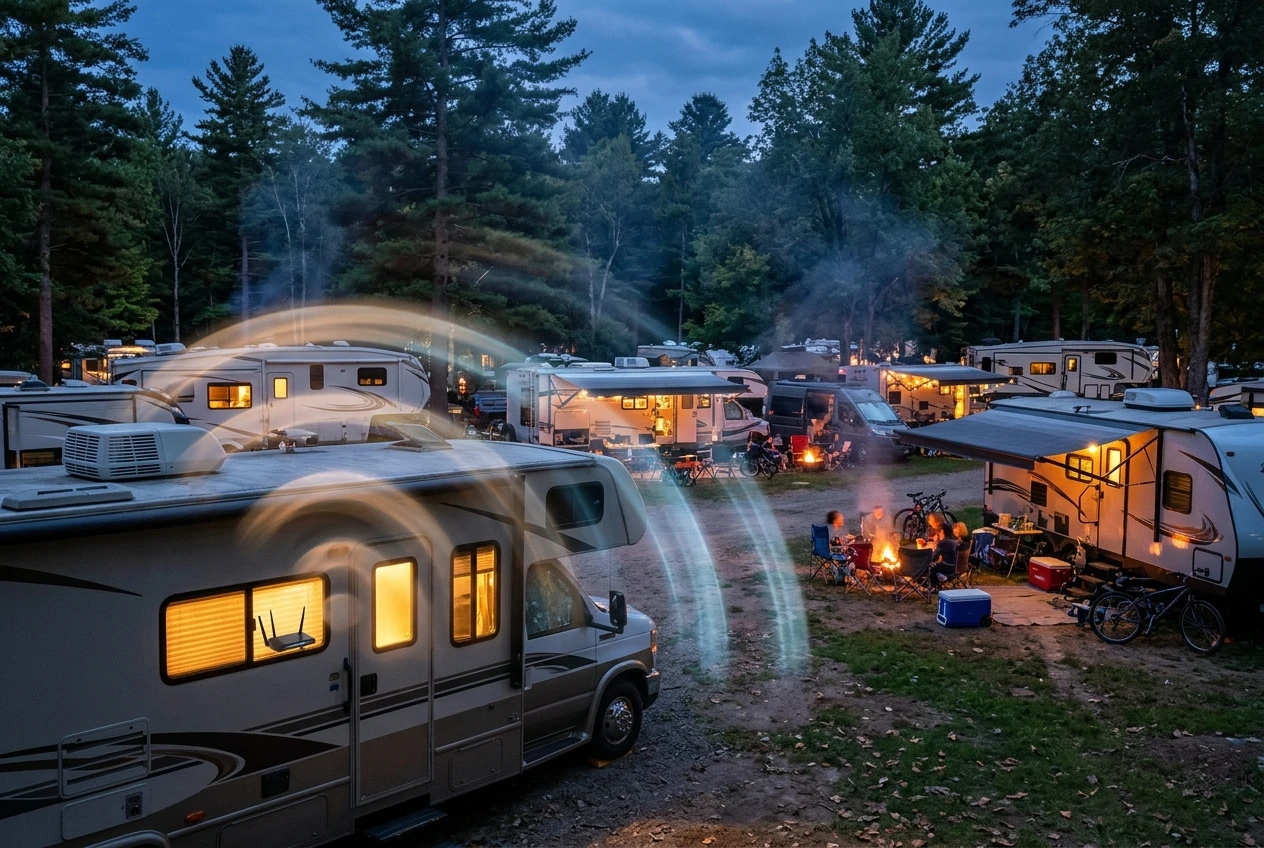
Your devices are a second problem. A modern RV can hold a smart TV, a tank monitor, a thermostat, a camera, a tire pressure system, and a leveling controller. Many of these get few security updates, and some ship with default logins. On a flat network, one weak device that gets compromised sits on the same network as your work laptop.
The third problem is that the router is a single point of control. If someone gets into its admin page, they can change DNS settings, open ports, or watch traffic. Home users with a router in a closet rarely think about this. In an RV, the router sits in a cabinet that guests, campground neighbors, and anyone you hand the Wi-Fi password to can get close to.
Change the defaults first: router logins, admin access, and firmware updates
Start with the router and every other device that creates a network, including the cellular hotspot and the dish’s built-in router. If you use your own router with the dish, the settings below apply to whichever device is running your Wi-Fi.
Work through this list:
- Admin password: replace the default with a long, unique password stored in a password manager. Change the admin username too if the router allows it.
- Wi-Fi password: use a long passphrase, not a short word with a number added. Never use WEP or an open network.
- Encryption mode: choose WPA3 if all your devices support it. Otherwise, use WPA2 with AES, or the mixed WPA2/WPA3 mode.
- Network name: leave out your name, your business, and your rig’s make or model. A name that identifies you tells a stranger who they are targeting.
- WPS: turn it off. The push-button and PIN pairing feature is a convenience that weakens the password you just set.
- Remote management: turn off any option that allows admin access from the internet side. You can manage the router from inside your own network.
- UPnP: turn it off unless a specific device needs it. UPnP lets devices open ports on your router without asking you.
Then check the firmware. Look in the admin page or the manufacturer’s app for the installed version and any available update, and turn on automatic updates if the router offers them. If the manufacturer no longer releases updates for your model, replace the router. Hardware that never gets patches stays vulnerable to every flaw found after its last update.
Your phone or tablet hotspot needs the same attention. Change its default Wi-Fi password and keep the phone’s operating system current.
Give work its own lane: separate networks for your laptop and your RV’s smart devices
Network separation means your work laptop and your smart devices cannot talk to each other. If a smart TV or tank monitor is compromised, it can only reach the other devices on its own network.
Aim for three groups:
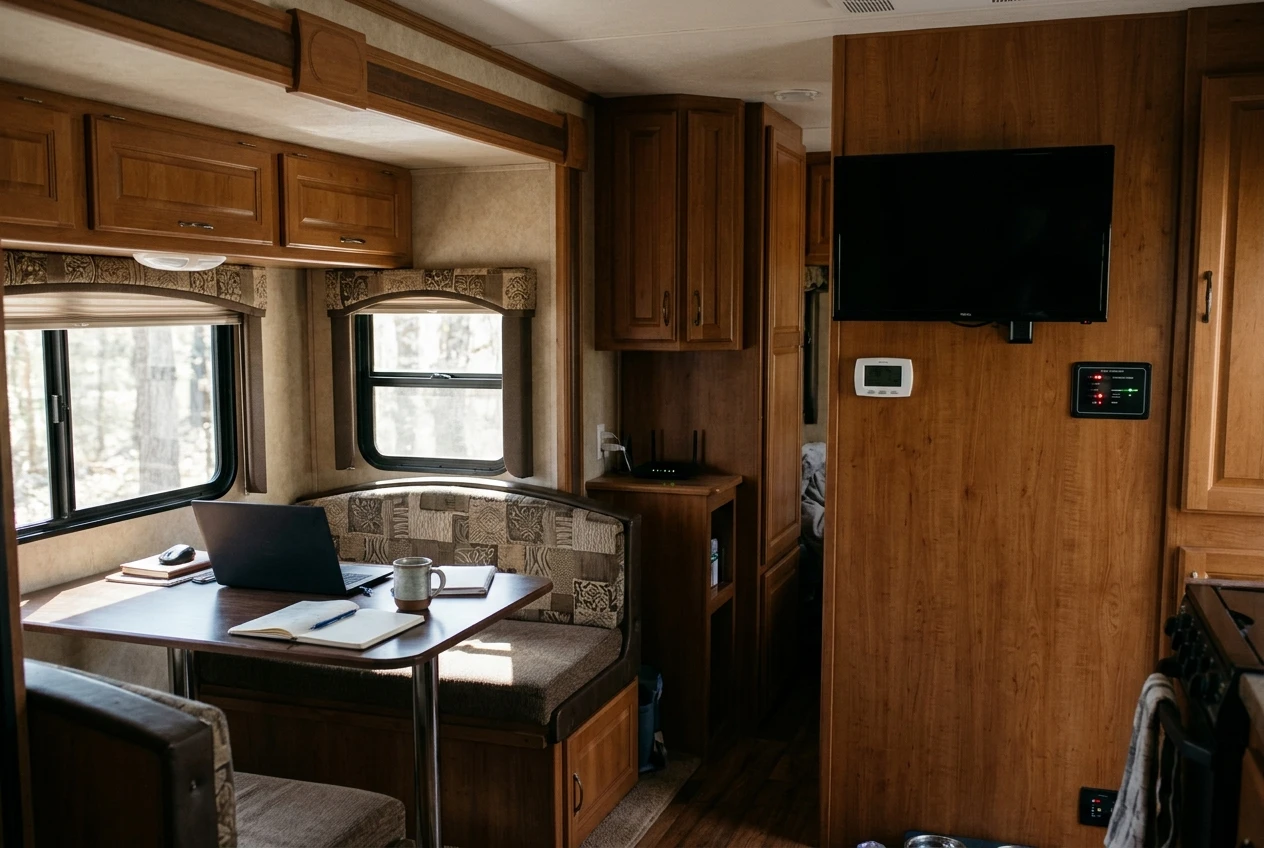
- Work: your laptop, your work phone, and anything else that handles business data.
- RV and smart devices: the TV, thermostat, cameras, tank and tire monitors, streaming sticks, and any other gadget you did not choose for security.
- Guests: anyone who asks for the Wi-Fi password.
Most consumer routers offer a guest network, which is the simplest way to create a second group. Guest networks normally block guest devices from reaching your main network, but check for a setting called client isolation or similar and confirm it is on. Some routers also support multiple networks with separate rules, sometimes through VLANs, which lets you build all three groups properly.
If your router only supports one guest network, put the smart devices there and keep guests off your network entirely, or make a temporary password for visitors and change it afterwards.
Some RV apps and casting features need your phone and the device on the same network. If a device stops responding after you move it, you can connect your phone to the smart device network while you use the app, then switch back. The inconvenience is small compared with an unpatched device sharing a network with client files.
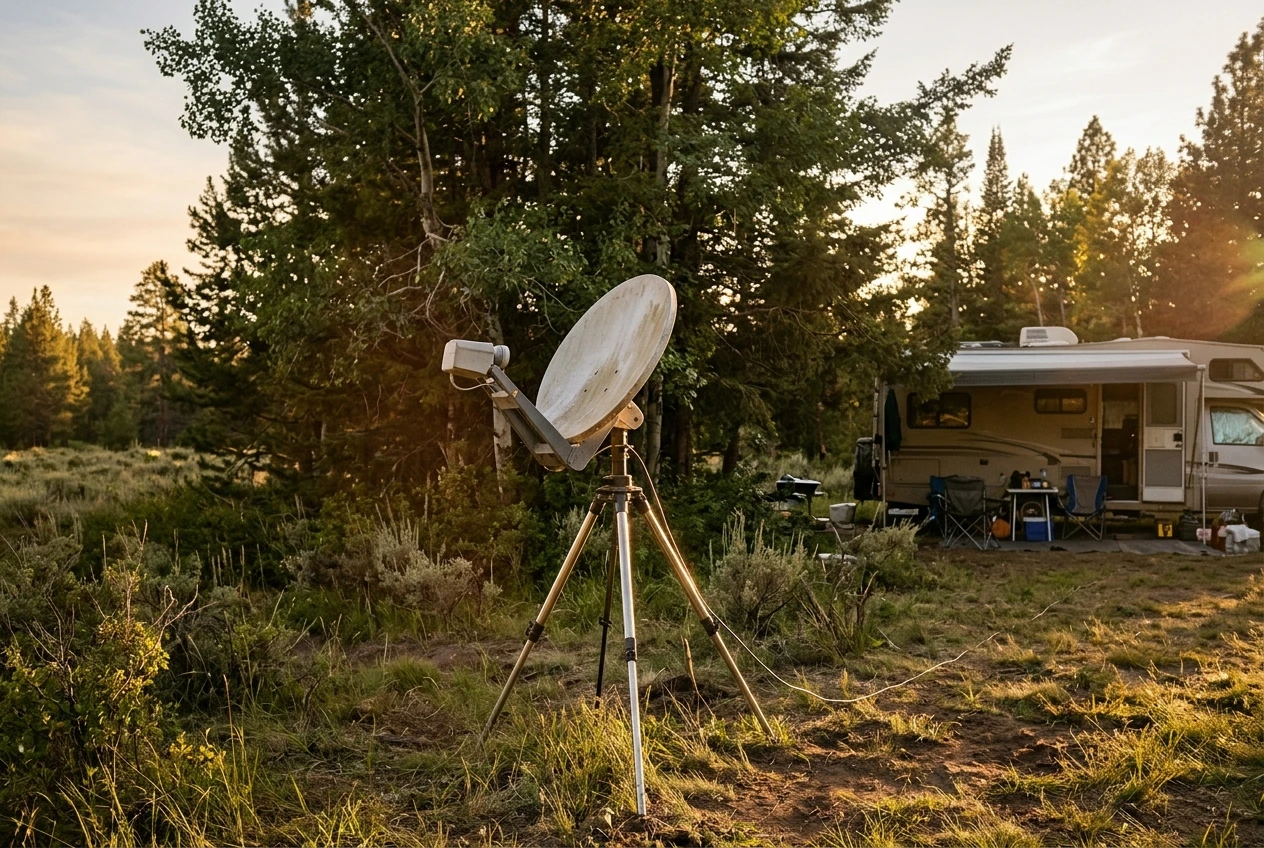
The dish also needs a decision. If you use your own router behind the dish, turn off the dish’s own Wi-Fi where the dish allows it. That leaves one network to secure instead of two, and nothing connects to the dish directly.
VPN on the router or on the laptop: which to use and when
A VPN encrypts traffic between your device and the VPN provider’s server, so the local network and your carrier cannot read it. It does not make you anonymous, and it does not stop phishing or malware. It protects the path your traffic takes.
A VPN on the router covers every device on that network with one setup. The kill switch can be applied to the whole network. The drawbacks are that your router has to support running a VPN client, and a modest router can slow down under the encryption load. All traffic goes through the tunnel, including streaming devices, and some streaming and banking sites react badly to VPN addresses.
A VPN on the laptop protects that device wherever it connects. It still works at a coffee shop or a campground, and it can be set up per application. The drawback is that each device needs its own client, and a device you forget to configure goes unprotected.
A practical rule for solo workers:
- Run the VPN client on the laptop. That covers the device that holds your work wherever it goes.
- Add a VPN on the router only if the router supports it well and you want phones and other devices covered.
- Avoid stacking two VPNs on the same traffic. It slows the connection and can cause hard-to-trace failures.
If a client or employer requires you to use their VPN, run that on the laptop and test it alongside any router VPN before you rely on both. When you pick a consumer provider, look for published independent audits of its no-logs claims. Marketing language alone is not evidence. For corporate tunnels over cellular and satellite links, see our post on managing enterprise VPNs over cellular and satellite.
Set up a kill switch so a dropped connection never exposes your work traffic
A kill switch blocks internet access when the VPN connection drops, so your laptop never sends traffic over the open connection. Cellular and satellite links drop more often than home broadband. A tower handoff, a dish obstruction, or a weak signal can break the tunnel, and without a kill switch, the laptop quietly reconnects to the internet without protection.
On the laptop, open the VPN app’s settings and look for an option called kill switch, always-on, or block connections without VPN. Turn it on. Some apps apply it only when the tunnel drops unexpectedly, not when you disconnect by hand, so read how yours behaves.
Then test it. Do not assume it works:
- Connect the VPN and start a continuous ping to a well-known site.
- Interrupt the tunnel, for example by ending the VPN process or turning off the connection it uses.
- Watch the ping. It should fail. If replies keep arriving, the kill switch is not working.
- Run a DNS leak test while connected to confirm your queries go through the tunnel. Check for IPv6 leaks too, since some setups tunnel only IPv4 traffic.
On a router with a VPN client, look for a policy or setting that blocks traffic on the VPN-routed devices when the tunnel is down. Test it the same way, by disconnecting the tunnel and confirming the devices lose access.
Repeat the test after major app or operating system updates, since those can change how the setting behaves.
Handle the times you must use campground or coffee shop Wi-Fi anyway
Your own cellular or satellite connection is the safer choice. Sometimes it is down, out of range, or out of data, and shared Wi-Fi is the only option. In that case, treat the network as untrusted.
- Set the network profile to Public on Windows, or the equivalent on your system, and keep the firewall on.
- Turn off file and printer sharing, and disable auto-join so the laptop does not connect to networks on its own.
- Handle the login page first. Many campgrounds use a captive portal, which needs a browser login before the VPN can connect. Complete the portal, start the VPN straight away, and enter nothing sensitive until the tunnel is up.
- Forget the network when you leave, so the laptop does not rejoin it later.
- Hold sensitive work such as banking, client files, or admin logins until you are back on your own connection, if you can.
A travel router makes this safer. You connect the router to the campground Wi-Fi as its upstream source and put your devices behind it on your own network. The campground sees one device instead of several, and the router’s security settings and VPN apply to everything behind it. Check that the router supports a client or repeater mode before buying one.
For wider guidance on data protection at parks, see our post on protecting remote work data at RV parks.
Physical security for a mobile office: lock screens, encryption and what happens if a laptop is stolen
An RV is easier to enter than a house, and laptops are easy to carry off. Plan for theft so it does not become a data breach.
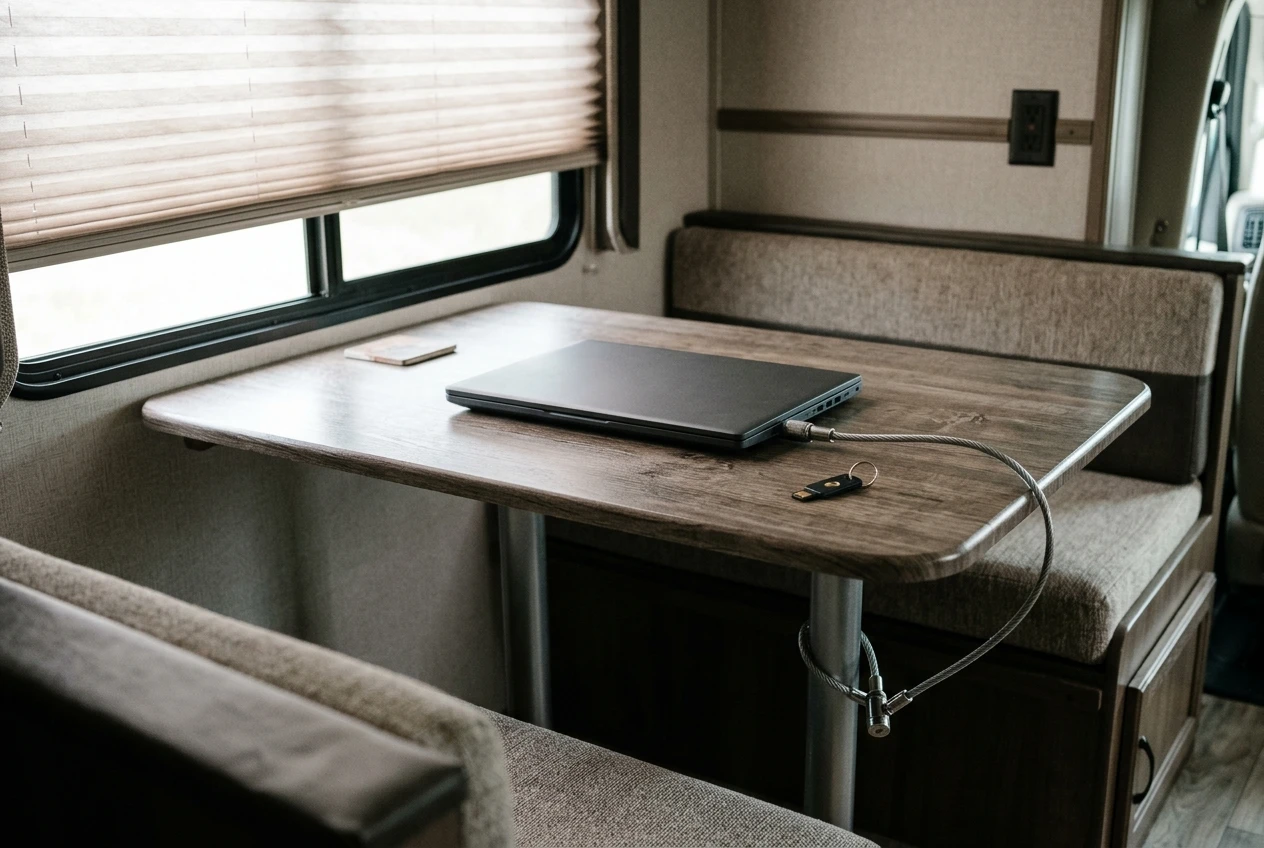
Encrypt the disk. Full-disk encryption means a thief with your laptop cannot read your files without your login. Use BitLocker on supported Windows editions, FileVault on a Mac, or LUKS on Linux. Check that it is turned on, because it is not always the default.
Lock the screen. Use a strong login password, set the screen to lock after a short idle period, and require the password on wake. Lock it every time you leave the desk, even to step outside for a minute.
Enable device tracking and remote wipe. Windows, Apple, and most Linux setups offer ways to locate or erase a lost device if you set them up in advance.
Back up your data. Keep an encrypted backup, with a copy stored away from the laptop. Backups also protect you from hardware failure, water damage, and ransomware.
Use multi-factor authentication on email, banking and business accounts, with an authenticator app or a hardware key. Your email account comes first, since it can reset the others.
Keep devices out of sight when you leave the RV, so a passer-by cannot see equipment through a window.
If a laptop is stolen, work in this order:
- Change your email password and sign out of all active sessions.
- Send the remote wipe command if you set it up.
- Change passwords for business tools, banking, and cloud storage.
- Tell clients if their data was on the device, since some contracts and laws require notification.
A 15-minute monthly security check you can repeat at every new site
Set a recurring reminder and run this at the start of each month, and again after a long stay at a new site.
- Router and hotspot firmware (3 minutes). Check for updates and install them. Confirm automatic updates are still on.
- Connected devices (3 minutes). Open the router’s device list. Remove anything you do not recognize and confirm smart devices are on the right network.
- Passwords and admin settings (2 minutes). Confirm remote management and WPS are still off. Change the guest password if anyone used it.
- VPN kill switch (3 minutes). Run the ping test and a DNS leak check.
- Laptop (2 minutes). Check for operating system updates and confirm disk encryption and device tracking are on.
- Backup (2 minutes). Confirm the last backup finished and the drive is stored safely.
At each new site, spend a minute on the basics before you start work. Look at which Wi-Fi networks are in range, confirm yours is the one you joined, and check the VPN is connected. That takes little time, and it keeps your secure RV wifi network secure after you move.
Also, how to build a reliable RV internet setup for remote RV work.







Recent Comments