
A hardware firewall at the edge, separate networks for work and everything else, filtered DNS, and an always-on encrypted tunnel to your employer or business make up RV network security for remote work. Together, they treat your rig as a small branch office with its own controlled network, instead of a laptop on whatever connection is nearby.
What does branch-office security look like inside an RV?
A branch office has one controlled entry point to the internet, internal networks divided by purpose, and a permanent encrypted link back to headquarters. An RV can have all of that in a few pieces of equipment that fit in a cabinet or under a dinette seat.
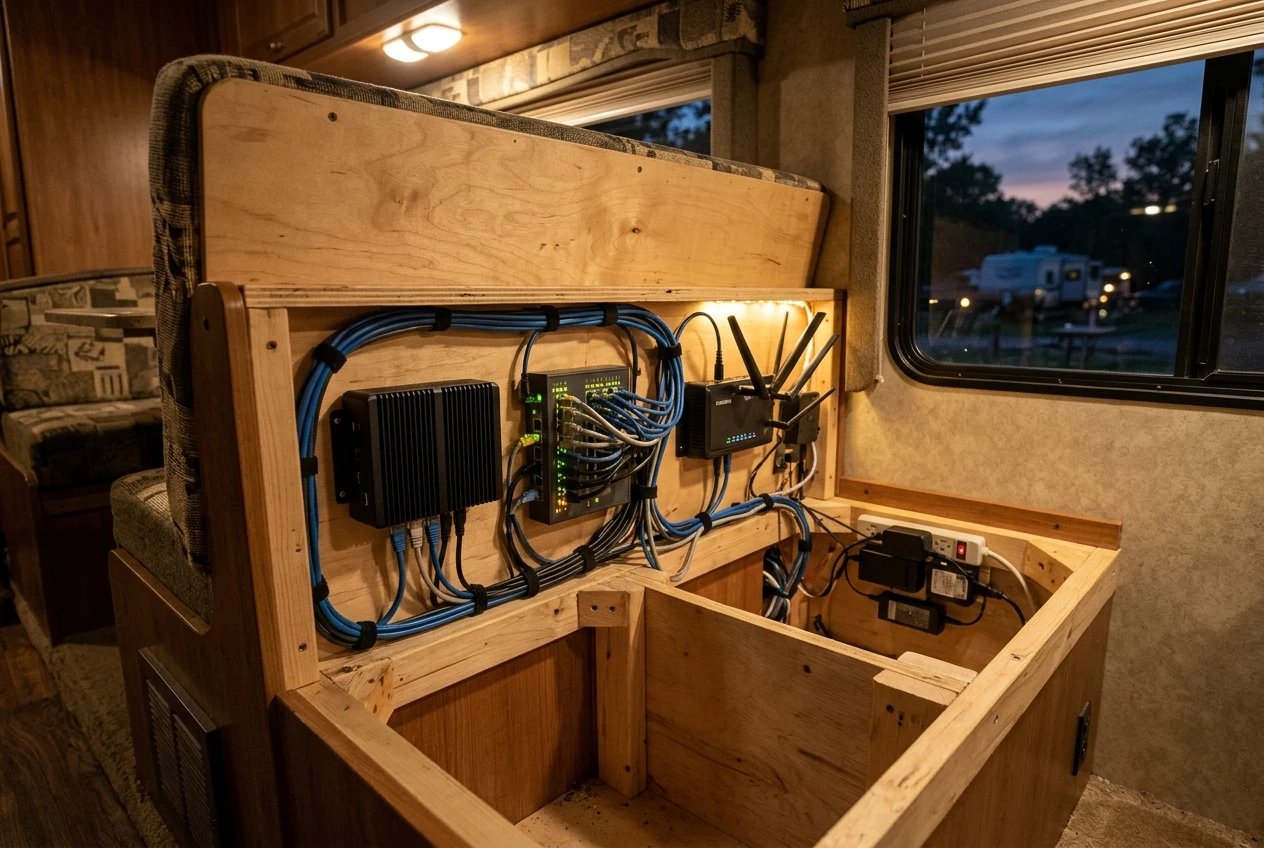
The pieces, from the outside in:
- Internet sources: a cellular router or hotspot, Starlink, campground Wi-Fi, or a mix of them.
- A firewall: the only device that connects directly to those sources.
- Segmented networks: one for work devices, one for personal devices, and one for everything else that connects.
- Filtered DNS: a resolver that blocks known malicious domains before your devices reach them.
- A tunnel: an encrypted connection from the firewall or from each work device to your employer’s network or your own business infrastructure.
You own this architecture, and it travels with you. When you move from a campground to a boondocking spot, the upstream connection changes but your network stays the same. That consistency is the point: your rules, your device list, and your logs do not depend on who runs the parking lot Wi-Fi.
The rest of this article covers the permanent build and the order to buy and configure it. For habits to use on a shared network while you are connected to it, the guide to campground Wi-Fi basics covers that ground.
Why aren’t a strong Wi-Fi password and a VPN enough?
A strong Wi-Fi password only controls who can join your wireless network, and a VPN only protects traffic from one device to one destination. Neither limits what the devices on your network can do to each other or what they reach on the internet.
Consider what typically connects inside an RV: laptops, phones, a smart TV, a streaming stick, tank and battery monitors, a thermostat, security cameras, and sometimes a tablet the kids or guests use. Many of these devices receive infrequent updates or none. On a flat network, a compromised TV can see the same devices your work laptop can see.
A VPN client on a laptop has its own gaps:
- It protects only the device it runs on, so a work printer or a second work laptop without the client is exposed.
- It can drop when a cellular connection changes towers or Starlink reorients, and some clients then let traffic leave unprotected.
- It does nothing about other devices on the same local network probing your laptop.
- It depends on the user remembering to connect it.
Some employers also expect more than a VPN client. If your employer has a security policy, read it first and ask IT what they require. Where their policy conflicts with anything here, follow theirs.
Which hardware firewall belongs at the edge of your RV network?
The firewall that belongs at the edge is one you can configure yourself, that supports VLANs and a VPN protocol such as WireGuard or IPsec, and that runs on 12V or on a small inverter without drawing much power. The three common routes differ in effort and control.
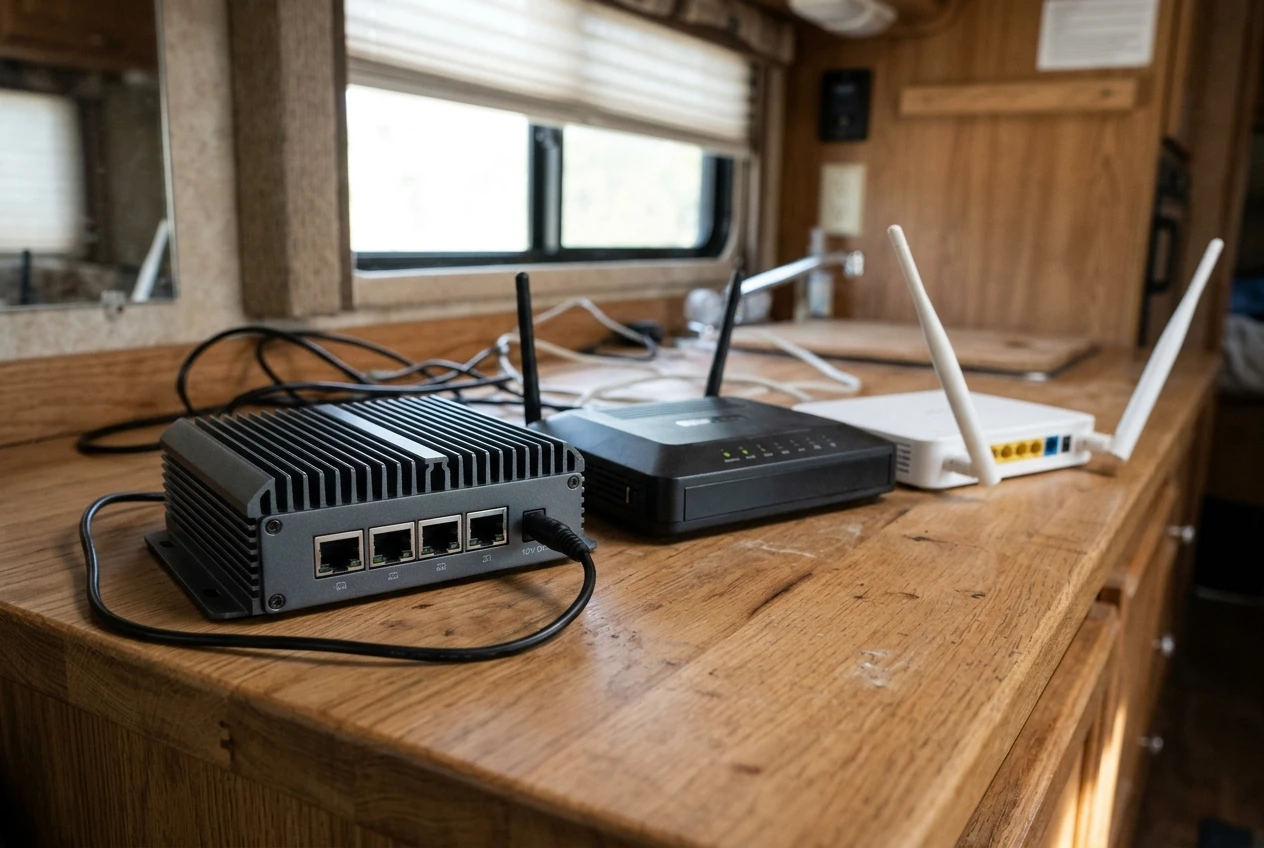
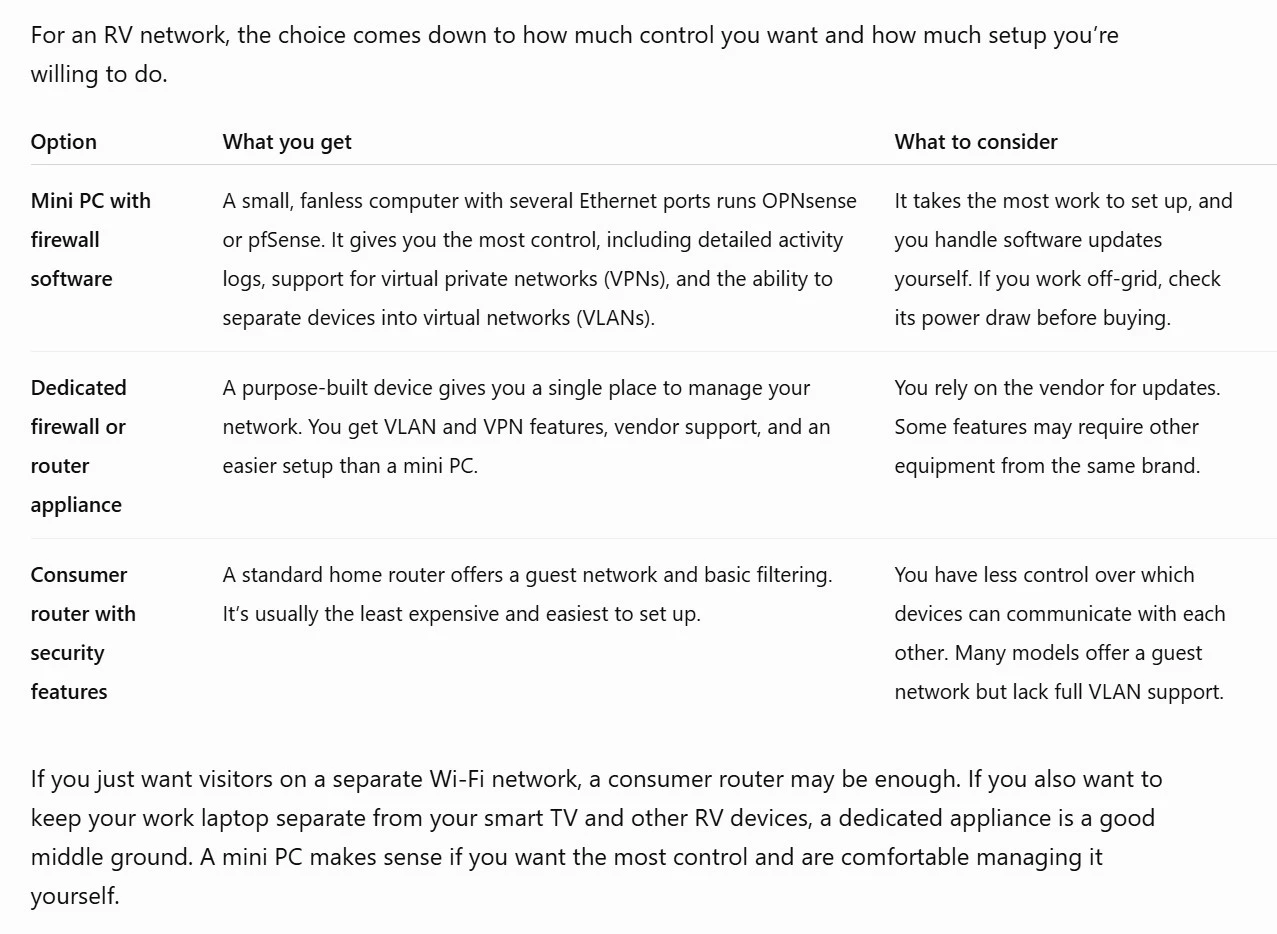
For a worker handling client or employer data, the first two options are the realistic choices. A consumer router’s guest network gives you two zones at best, and the rules between them are rarely adjustable.
Whatever you pick, check these before buying:
- Number of Ethernet ports. You need at least one for the upstream connection and one for the internal network, and a second upstream port makes failover easier.
- VLAN support. This lets one cable and one managed switch carry several separate networks.
- Power input. Look for a unit that accepts DC input or draws little enough to run from your inverter without a noticeable load on your batteries.
- Update policy. A firewall that no longer receives security updates is a liability.
- VPN throughput. Confirm the hardware handles encrypted traffic at the speed of your fastest connection, using the manufacturer’s published figures.
Put the firewall in front of everything. Your cellular router or Starlink should connect to the firewall’s upstream port, with its own Wi-Fi turned off or its built-in routing set to bypass or bridge mode where the hardware allows it. Otherwise, you end up with two routers translating addresses, which complicates the tunnel and leaves an unmanaged network in front of your managed one.
How do you separate work devices from everything else?
You separate them with VLANs, which are logically distinct networks that share the same physical cables and Wi-Fi access points. Each VLAN gets its own address range and its own firewall rules, so a device on one cannot reach a device on another unless you explicitly allow it.
A workable layout for most RVs uses three networks:
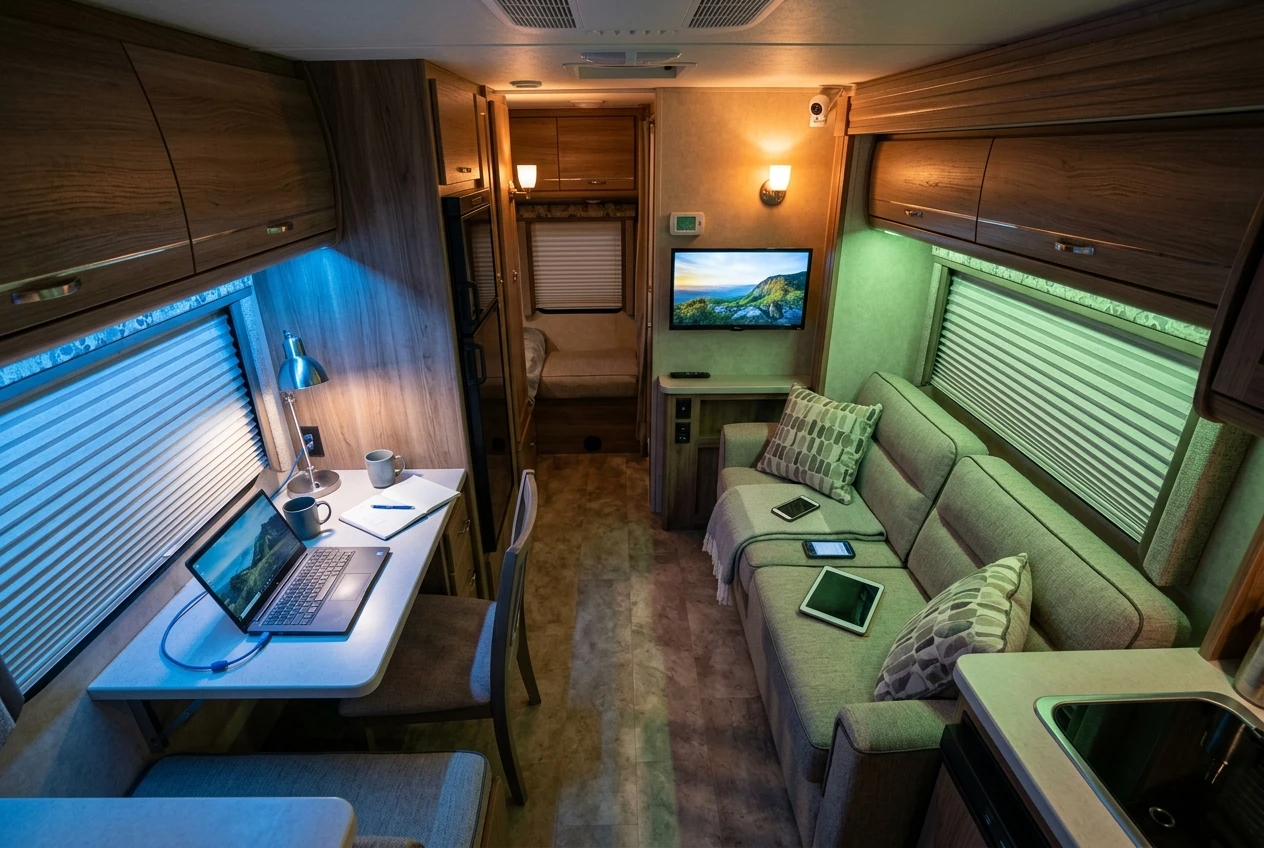
- Work: employer-issued or business laptops, a work phone, and a work printer if you have one.
- Personal: personal phones, tablets, and laptops.
- Utility: the smart TV, streaming devices, tank monitors, cameras, thermostats, and anything else you do not fully trust.
Add a fourth guest network if visitors regularly use your connection. Give it internet access only, with no route to any of the others.
The firewall rules follow a simple pattern. The work network can reach the internet and the tunnel. The personal network can reach the internet. The utility network can reach the internet but not the other networks, and ideally only the specific services each device needs. Nothing initiates a connection into the work network from anywhere else.
To broadcast these networks over Wi-Fi, you need an access point that supports multiple SSIDs mapped to VLANs. Each SSID gets its own strong passphrase. A small managed switch connects the firewall, access point, and any wired devices. Wire your work laptop with Ethernet when your desk allows it, since it is faster and removes one wireless attack surface.
What should you lock down in the router and DNS settings?
Lock down administration access, unused services, and name resolution, in that order. These settings do most of the work of keeping an exposed WAN connection quiet.
On the firewall:
- Change default credentials and use a long, unique password, with multi-factor authentication if the firmware supports it.
- Restrict the admin interface to the work network or a dedicated management network only, never to the WAN side or the utility network.
- Disable UPnP, which lets devices open inbound ports without asking you.
- Disable remote management on the WAN interface unless you have a specific reason, and then only over your tunnel.
- Turn off WPS on any access point.
- Use WPA3 or WPA2 with AES on every SSID, and keep client isolation on for the utility and guest networks.
- Keep firmware current and set a calendar reminder to check, since an RV network can sit unattended for months.
For DNS, configure the firewall to hand out a filtering resolver to every network and to block devices from using any other. Public resolvers that offer malware filtering include Quad9 and Cloudflare’s security-filtered addresses, and NextDNS lets you set per-network rules and view query logs. Add a firewall rule that redirects or blocks outbound DNS on port 53 and DNS over TLS on port 853 from any source except the firewall itself. Otherwise, a device with a hard-coded resolver bypasses your filter.
Your work network may need to use your employer’s DNS once the tunnel is up, particularly to reach internal hostnames. Ask IT how their setup expects to resolve names, and configure the work VLAN to match.
How do you keep a secure tunnel running over cellular and Starlink?
You keep it running by having the firewall initiate the tunnel outward, keeping it alive through connection changes, and blocking work traffic whenever it is down. Both cellular carriers and Starlink commonly place customers behind carrier-grade NAT, which means you generally cannot accept inbound connections from outside. An outbound tunnel works fine in that situation, because your side starts the conversation.
Choose where the tunnel ends according to your situation:
- Employer-managed: your employer may require their own VPN client on the work laptop. In that case, put the laptop on the work VLAN and let their client run as designed, with your firewall still controlling what else the network can reach.
- Self-employed with an office or server: run WireGuard or IPsec between your firewall and a firewall or server you control.
- Self-employed without infrastructure: a reputable commercial VPN or a small cloud server you configure yourself can serve as the far end, with the understanding that this protects traffic in transit but does not replace the access controls of a real office network.
Tunnels over mobile links need a few adjustments:

- Set a keepalive interval so the tunnel stays open through NAT timeouts. WireGuard has a persistent keepalive setting for this purpose.
- Lower the MTU if you see stalls or slow page loads. Cellular and satellite paths often handle full-size packets poorly, and a slightly smaller MTU on the tunnel interface can fix it.
- Enable a kill switch by writing a firewall rule that allows work VLAN traffic out only through the tunnel interface. If the tunnel drops, work traffic stops instead of leaking over the open connection.
- Plan for failover. If you have two upstream connections, configure the firewall to switch between them and let the tunnel re-establish over whichever is active. The guide to building a reliable RV internet setup covers failover in more depth.
Starlink’s router can be placed in bypass mode on hardware that supports it, which hands the connection to your firewall directly. Check your model’s current options in Starlink’s documentation before buying anything to match it.
What does physical security mean for gear in a vehicle?
Physical security means preventing someone from taking, tampering with, or reading your equipment, because a vehicle is easier to enter than a house and your devices leave with the vehicle when it is stolen. Network controls do nothing if someone walks away with the firewall or the laptop.
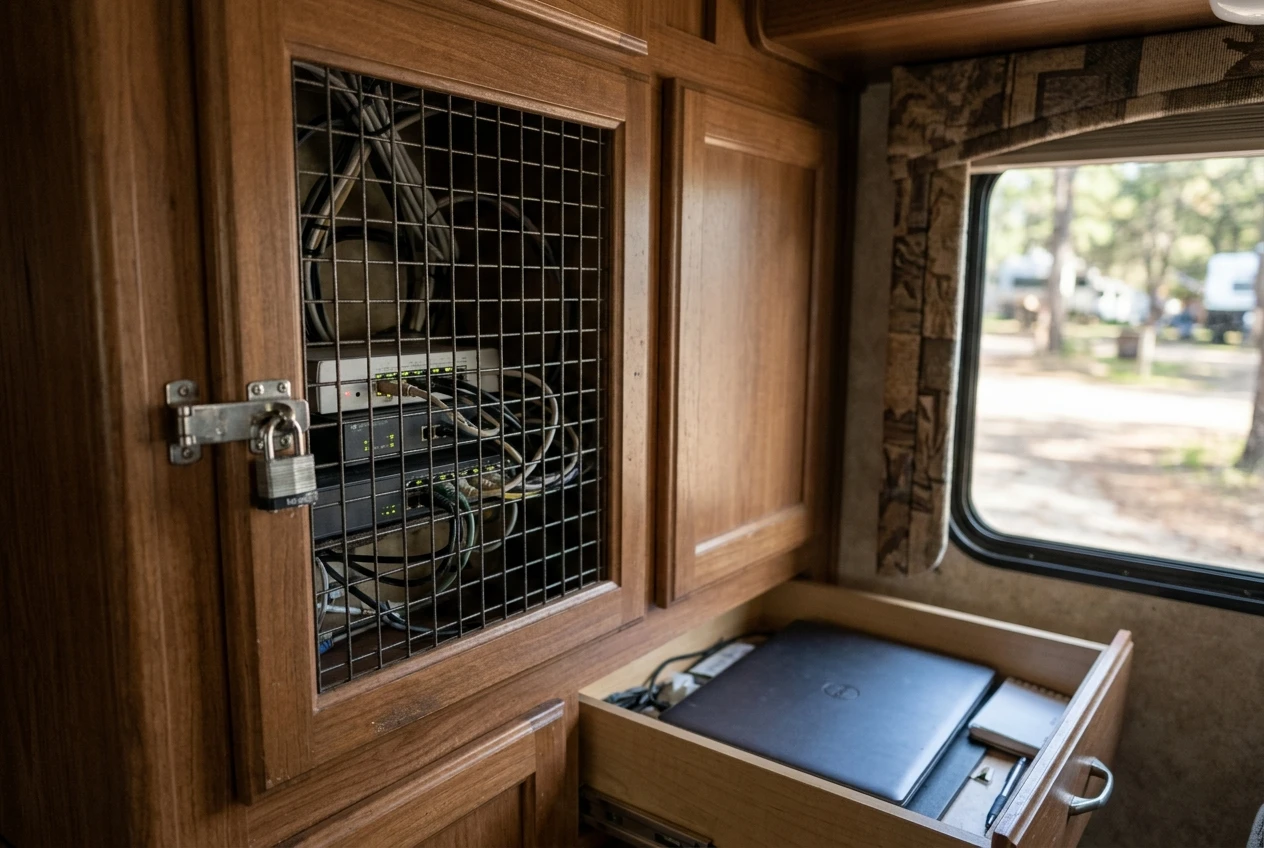
Practical measures:
- Encrypt every laptop and phone drive. BitLocker on Windows, FileVault on macOS, and the built-in encryption on current phones and many Linux distributions all protect data if the device is stolen.
- Require a login and a short screen lock timeout on every work device.
- Store networking gear out of sight in a locked cabinet or compartment, not on a visible shelf near a window.
- Secure the firewall’s console and admin access. Anyone with physical access to a firewall can usually reset it, so a locked compartment matters.
- Put work devices away or lock them when you leave the rig, rather than leaving them on the desk.
- Back up the firewall configuration to an encrypted file stored off the rig, so a theft or failure does not mean rebuilding from memory.
- Label nothing with employer information on gear that could be seen from outside.
If your employer issues the laptop, report a loss or theft promptly, and follow their process. They may need to lock the device or revoke credentials quickly.
What is the order to build it in, and how do you test it?
Build it in the order below, testing each stage before adding the next, so a problem has only one recent change to explain it.
- Read your employer’s security policy, or define your own requirements if you are self-employed, including which data you handle and what you must protect it with.
- Buy and configure the firewall at home or on a reliable connection, with admin credentials changed and firmware updated.
- Connect one upstream source and confirm basic internet access from a single wired device.
- Add the managed switch and access point, then create the VLANs and SSIDs.
- Write the firewall rules between networks, with the default being to deny and each allowance added deliberately.
- Set filtered DNS and block outbound DNS from everything but the firewall.
- Set up the tunnel, with keepalive, MTU, and the kill switch rule.
- Add the second upstream connection and configure failover.
- Move devices onto their networks, starting with work devices and ending with the utility devices.
- Secure the hardware physically and save an encrypted backup of the configuration.
Then test what you built. Each of these checks has a clear pass condition:
- Segmentation test: from a device on the utility network, try to reach the firewall’s admin page and a work laptop’s address. Both attempts should fail. A tool such as nmap, run from a personal laptop on the utility network, shows what is reachable.
- Outside scan: from a different network, scan your WAN address for open ports. Given carrier NAT, you may not be able to reach it at all, which is an acceptable result. If you can reach it, nothing should respond.
- DNS test: set a device’s DNS manually to a public resolver. Queries should fail or be redirected. Then visit a DNS leak test page and confirm that the resolver shown is the one you chose.
- Kill switch test: with the work laptop active, disable the tunnel on the firewall. Work traffic should stop completely, and re-enabling the tunnel should restore it without any manual change.
- Failover test: unplug the primary upstream connection while a call or file transfer runs. The firewall should move to the second connection, and the tunnel should reconnect within a short time.
- Admin access test: try to log in to the firewall from the personal, utility, and guest networks. Each should be refused.
Repeat the segmentation and kill switch tests after every firmware update or rule change. Keep a short written list of the devices on each network, so a new, unfamiliar device in the firewall’s client list stands out immediately.
Thanks for stopping by! To learn more about us, visit this article.







Recent Comments