
Most remote workers in an RV do not lose a call because their main connection is slow. They lose it because that connection stops, and nothing else is there to take over. An RV internet failover setup fixes this by putting two or three independent connections behind one router that switches between them automatically.
When the primary link dies, the router moves your traffic to the next one, and you rejoin the call instead of spending twenty minutes diagnosing a modem.
This article assumes you already have one working connection and want to make it dependable enough that a client deadline can rest on it.
Why a signal booster alone is a single point of failure
A cellular signal booster amplifies a signal that already exists. It pulls in a weak signal from one carrier’s tower, strengthens it, and rebroadcasts it inside the rig. If that tower is down, overloaded, or out of reach, the booster has nothing to work with. Boosting improves one link. It does not add a second one.
Several other failures happen regardless of how strong your signal is:
- The carrier has a regional outage or is congested in the evening when a campground fills up.
- Your plan runs out of high-speed data and gets throttled to a speed that cannot hold a video call.
- The modem or router overheats, freezes, or needs a reboot.
- The 12V supply drops, a fuse blows, or an inverter trips.
- An antenna cable gets damaged or a roof-mounted antenna shifts.
A booster addresses none of these. Each one calls for a different remedy, and the common answer is a second connection that does not depend on the same carrier, network, or piece of equipment as the first.
What failover and bonding actually do, and which one you need
The two terms get mixed up in product listings, and they behave differently.
Failover keeps one connection active and watches it. The router sends small test requests, called health checks, over that link. When enough of them fail, it moves your traffic to the next connection in priority order. Your public IP address changes in that switch, so existing sessions such as a video call or a remote desktop usually drop. Most apps reconnect within moments, but you will notice the interruption.
Bonding (sometimes sold as link aggregation or SD-WAN) splits your traffic across several connections at once. A remote server that you subscribe to or run yourself reassembles it, so the outside world sees one steady address. If one link dies, the session continues. The costs are a monthly service, more complex setup, and a little added latency from routing everything through that server.
A third option, load balancing, spreads separate sessions across links to use more total bandwidth. It does not keep a single call alive when its link fails.
For most people working from an RV, failover is the right starting point. A five-second hiccup that recovers on its own is acceptable on a client call. Bonding makes sense when even that hiccup is unacceptable: live broadcasting, trading, a monitored support queue, or anything with a contractual uptime requirement.
Pick links that fail independently
Two connections are only redundant if the same event cannot take both down. Choose links for how differently they fail, not for how fast they are.
Cellular on different host networks
Two SIMs from two different brands can still be on one network. Many budget carriers and data-only resellers run on a larger carrier’s towers. If both of your plans use the same host network, a tower outage or local congestion hits both. Check which network each plan runs on, and pair plans from different host networks. Then look at each carrier’s coverage map for the areas you actually stay in, because the best carrier in one region is often the weaker one in another.
Satellite
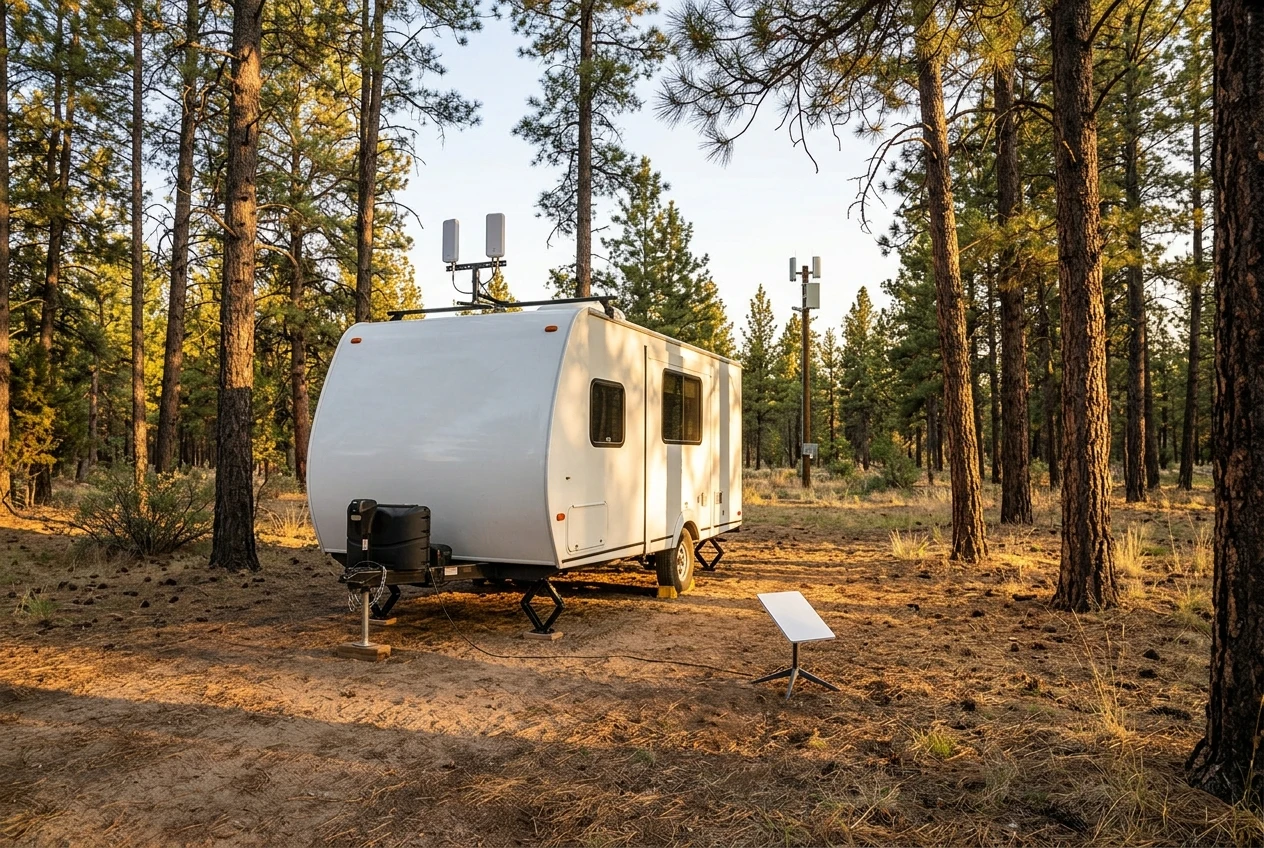
A satellite terminal does not depend on cell towers at all, which makes it the strongest backup for remote sites. It needs a clear view of the sky, so trees, awnings, and nearby buildings can interrupt it. It also draws its own power and needs its own mounting. If you stay mostly in places with poor cellular coverage, satellite may belong in your primary role instead of the backup. Our guide to the best satellite internet options for RVers covers the choices in more depth.
Campground and park Wi-Fi
Campground Wi-Fi is the cheapest backup and often the weakest. It is shared with every other guest; it tends to slow down when people stream in the evening, and the signal may not reach your site. Even so, it fails independently of cellular and satellite, and some parks have solid connections. Treat it as a fallback that sometimes turns out to be excellent. Because the network is shared and unmanaged, run a VPN over it and keep file sharing off.
Sensible combinations
- Two cellular networks plus campground Wi-Fi: a good fit for people who move between towns, parks and well-covered areas.
- One cellular network plus satellite: a good fit for people who often stay where only one carrier has signal, or none.
- Two cellular networks plus satellite: the most resilient setup, and the most expensive to run.
The core hardware: a multi-WAN cellular router, antennas, and SIMs
The router is the part that makes failover work. A multi-WAN router accepts several internet sources (“WAN” connections) and decides which one carries your traffic. For an RV, look for these features:
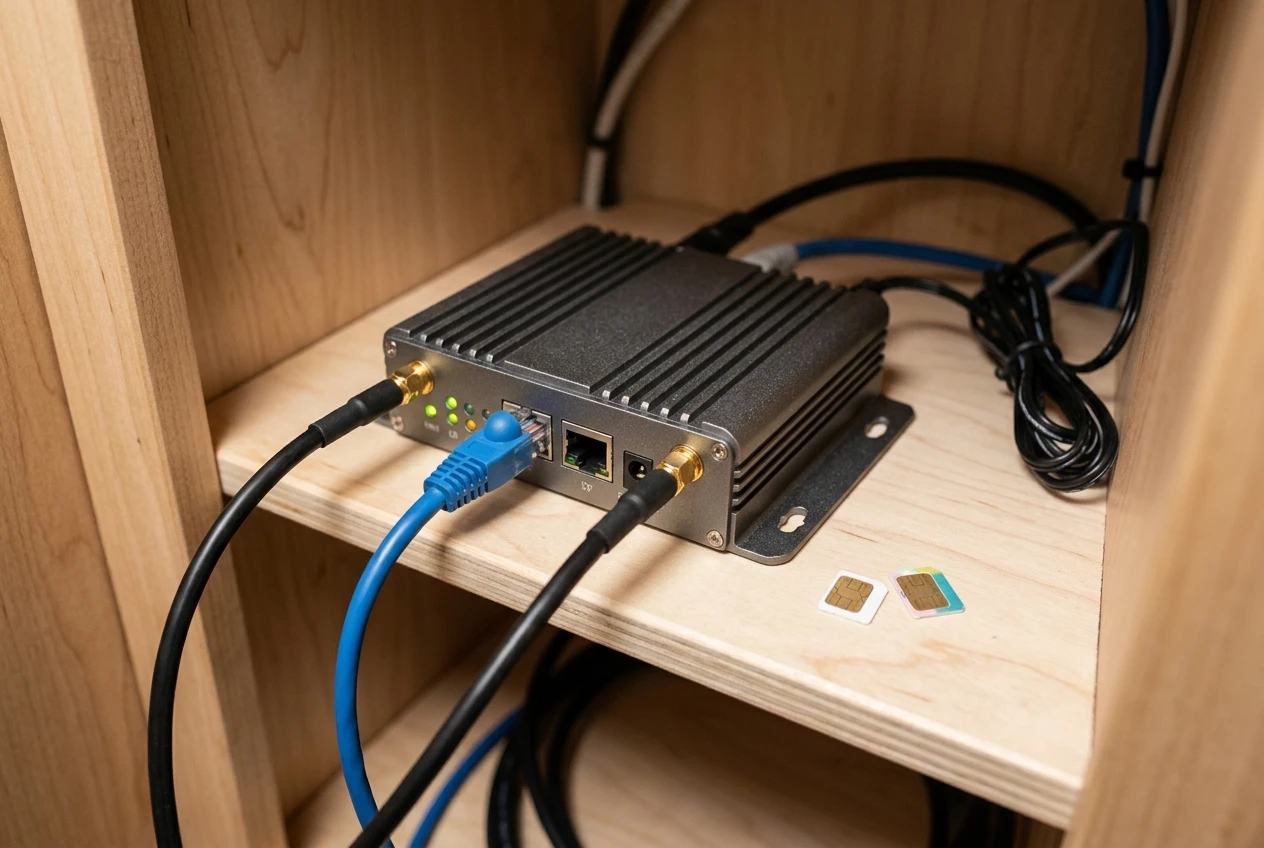
- Two cellular modems, or at least dual SIM support. A router with two modems can keep both connections live, so a switch is nearly instant. A dual-SIM router with one modem only runs one SIM at a time, and switching means the modem has to register on the other network first, which takes longer.
- An Ethernet WAN port to connect a satellite terminal or any other wired source.
- Wi-Fi as WAN, meaning the router can join a campground network and treat it as one more connection.
- Configurable health checks and priority rules, so you control when and why it switches.
- VPN support and a way to reach its settings remotely, which helps if you leave the rig for a day.
- 12V-friendly power, since you will run it from the coach battery and want it to survive a shore power loss.
Antennas deserve as much thought as the router. External cellular antennas mounted on the roof generally outperform the router’s built-in ones, and a long, thin cable loses signal strength along its length, so keep runs short and use cable rated for the frequencies you need. If you use two carriers, give each its own antenna pair so one failure or one bad placement does not affect both. For campground Wi-Fi, an external Wi-Fi antenna that can reach a distant access point makes the difference between usable and unusable.
For SIMs, read the plan terms before you buy. Some plans restrict hotspot or router use, throttle video, or deprioritize traffic after a threshold of data. A plan that works well on a phone may behave differently inside a router. Our guide on how to choose the right cellular data plan for RVers explains how to compare those terms.
Power is part of the hardware too. A router that reboots every time the inverter hiccups defeats the point. If your setup shares circuits with the rest of the coach, see our posts on RV power for remote work for how to keep your office equipment steady through long workdays.
Set your failover rules so a call survives a dropped connection
Default settings on most routers are built for a house, not for a moving rig with flaky links. Review these settings before you rely on the box.
Priority order. Put your best everyday connection first, and place the metered or expensive link last. If satellite data is costly, make it a last resort. If campground Wi-Fi is fast but unpredictable, decide whether it goes ahead of your second cellular plan or behind it.
Health checks. Configure the router to test each link against more than one destination, such as two or three well-known public servers. A check against a single target can fail because that one server is unreachable, which triggers a pointless switch. Set a failure threshold that requires several missed checks in a row. Too sensitive, and the router flips constantly. Too lax, and you sit on a dead link for a minute while a client waits.
Failback behavior. Decide what happens when the primary link recovers. Switching back immediately can cause a second interruption in the middle of a call. A short delay before failing back, or a rule to stay on the backup until you choose otherwise, avoids a second drop.
VPN settings. If you run a VPN, check that it reconnects on its own after an address change. A kill switch that blocks all traffic until you manually reconnect will turn a five-second switch into a dead connection. Our post on securing your remote business data while traveling goes into VPN choices and the rest of your data protection.
A call plan. No failover setup is truly seamless. For important calls, keep the meeting’s dial-in number ready, and know how to join by phone audio from your cell connection. Our guide to handling professional video calls on the road covers camera, audio, and the etiquette of rejoining after a drop.
Test the system before a deadline depends on it
An untested failover system is a guess. Run the following checks when you have a quiet afternoon, not when a client is waiting.

- Measure each link alone. Disable the others, then check download speed, upload speed, and latency on each connection at your current site. Upload speed matters most for video calls. SpeedTest.net is a great source for this test!
- Pull the primary during a live call. Start a video call with a friend or colleague, then unplug the primary antenna or disable the link in the router. Note how long the call freezes, whether it recovers on its own, and whether audio or video returns first.
- Test failback. Restore the primary and watch what the router does. Confirm it behaves the way you configured it.
- Kill the backup too. Disable the second link, then the third, to confirm that each switch works and that the router does not get stuck on a dead connection.
- Cut the power. Turn off the inverter or disconnect the router, then power it back on. Check that it boots with your settings and brings the links up without you touching it.
- Test with your VPN and work tools running. Remote desktop sessions, cloud drives, and any client software may react differently from a plain video call.
- Write down the results. Keep a short note of switch times and any quirks, so you know what to expect during a real outage.
Repeat the test after any firmware update, any change to your antennas or plans, and whenever you move to a region with different coverage. A setup that worked in one state can behave differently somewhere with weaker signal on your second carrier.
Match your redundancy level to the work you do
More layers mean more cost, more equipment, and more to maintain. The right level depends on what an hour offline costs you.
Light redundancy. If your work is mostly email, writing, or tasks with flexible deadlines, a primary cellular plan plus a phone hotspot on a different carrier may be enough. You switch manually, and the occasional drop costs you minutes.
Standard redundancy. If you take client calls most days, run a multi-WAN router with two cellular networks and add campground Wi-Fi when it is available. This level handles most outages without any action from you.
Heavy redundancy. If you host live events, staff a support line, work under a service agreement, or present to clients who will not tolerate a drop, add satellite as a third independent link and consider a bonding service so single sessions survive a link loss. Add battery backup for the router and modems too, so a power interruption does not undo the rest of the work.
Check whether your employer or clients specify connection requirements. Some remote jobs state a minimum speed or require a wired or secondary connection, and your setup should meet that requirement before you decide how much redundancy to build beyond it.
Keep the backup affordable: plans, pausing service and what to skip
A backup connection sits idle most of the time, so paying full price for it all year deserves some scrutiny.
Right-size the backup plan. A link used only when the primary fails does not need the largest data allowance. Be aware that devices still use data in the background, such as cloud sync and software updates, so use the router’s data usage tracking and set rules to keep heavy tasks off the backup.
Pause what you can. Some satellite and cellular providers let you pause service or switch to a lower tier during months when you are not traveling or working remotely. Terms differ by provider and change over time, so confirm the current policy before you count on it, including any fees for pausing and restarting.
Read the hotspot and router terms. A cheap plan that blocks or throttles router use is not a bargain when you need it. Confirm that the plan allows the way you plan to use it.
Skip what you do not need yet:
- A third cellular carrier, if two on different host networks already cover your usual areas.
- A bonding service, until you have run failover for a while and found a real case where a brief drop cost you work.
- Stacked boosters and extra antennas on a link that already tests well.
- Premium or unlimited tiers on the backup, if its main job is to carry a few calls.
Start with the layer that removes your most likely failure. For most people, that is a second cellular network on a different host, connected through a router that switches automatically. Run the tests above, keep your notes, and add satellite or bonding later if your work and your travel routes show that you need them.
What We Use!
We have been full time since 2008, and internet access has evolved over the years. It has gotten so much better!
We use about 500 GB of data a month as full time RVers who work from the RV and love to watch movies. 😁 We have settled on using Starlink and, as a backup and for travel days, an unlimited-usage MiFi unit. Those two currently cost us $235/month.
Both run at 100 Mbps or better and provide seamless streaming of movies and videos.
If you want to read more on this subject, please check out my other article.







Recent Comments