
How to protect electronics from RV vibration comes down to one decision per device: stow it, mount it, or power it down before you drive. Spinning drives get powered off and padded, screens get packed flat, routers and antennas get fixed at several points, and connectors get checked after every trip.
What does road vibration actually do to remote office gear?
Road vibration does two different kinds of damage, and each calls for a different fix. Constant low-level shaking wears things slowly: plugs work loose, screws back out, and parts that rub against each other wear through. A sudden jolt from a pothole, a dip at a driveway, or a rail crossing does damage in one event: a dropped monitor, a cracked screen, or a hard drive head striking its platter.
A house stays still, so office gear is built for a desk that stays still. An RV adds motion in every direction for hours at a time, and the coach can flex and sway in ways a parked desk never does. Items that sit securely while parked can slide, tip, or hammer against a wall once the wheels turn.
Most failures you will see fall into a few types:
- Mechanical shock to anything with moving parts, mainly spinning hard drives.
- Connector fatigue, where plugs loosen or pins bend after many miles.
- Mount failure, where an antenna, bracket, or monitor arm slowly loosens its hardware.
- Impact and pressure damage to screens, from falling items or something stacked against the panel.
- Projectiles, meaning every loose item on the desk that becomes a hazard to your gear and to you.
Heat is a separate problem and has its own treatment. For that, see the guide on preventing RV workstation overheating.
Which of your devices are most at risk while driving?
The devices most at risk are those with moving parts, large fragile screens, or connectors that hold weight. Sorting them by how they fail gives you a quick decision for each one.

Device | How it fails on the road | Decision |
|---|---|---|
Spinning hard drives | Head or platter damage from shock | Power off fully, then stow padded |
SSDs and flash drives | Loose or damaged connectors, lost in transit | Eject, stow in a case |
Laptop | Hinge strain, screen pressure, sliding | Shut down, stow flat and padded |
External monitor | Cracked panel, loosened arm, tipping | Stow in padding or lock the arm |
Router or modem | Slides, unplugs, power cable strain | Mount in place, check power |
Roof or pole antennas | Loosened hardware, damaged connector | Mount firmly, fold or stow if designed to |
Cables and adapters at ports | Loose seating, bent pins | Check ends after every drive |
Mugs, lamps, webcams, mics | Fall and hit other gear | Stow in a drawer or bin |
The table is a starting point. If a device is not on it, ask which of the failure types above applies and pick the matching decision.
Should you pack the laptop and monitor away or secure them in place?
Pack them away. A laptop and a monitor are the two most expensive and most fragile items on the desk, and both are easy to remove in a minute or two, so stowing them is the safer default.
Laptops
Shut the laptop down instead of leaving it asleep. A sleeping machine still has power running through it, and a laptop with a spinning drive is exposed to shock the whole time. Most newer laptops use solid-state storage, but the hinge, the screen, and the ports remain vulnerable, so the same routine applies.
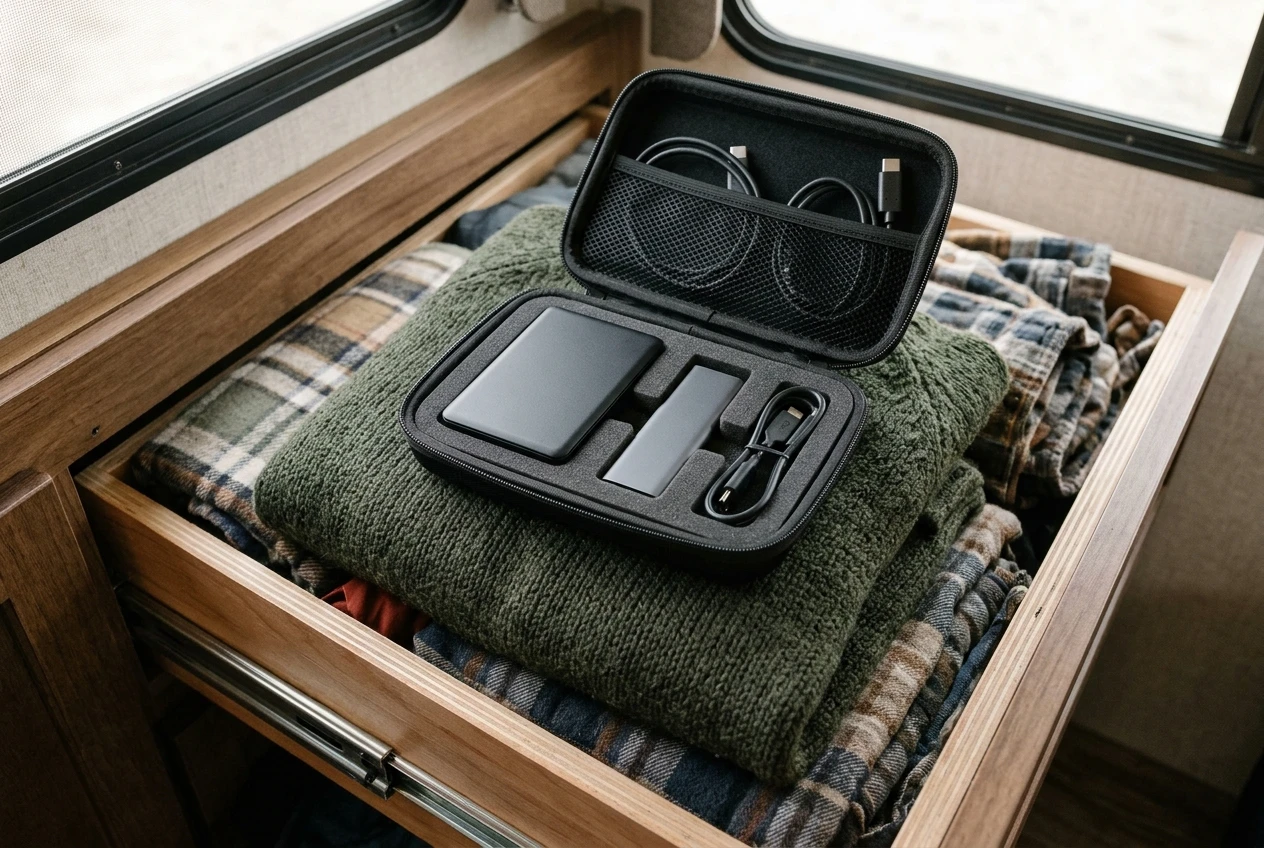
Stow it flat, closed, and padded, in a spot that does not press on the lid. A padded sleeve inside a bag, placed in a closet or drawer with soft items around it, works well. Avoid the floor, where it can slide, and avoid any place where something heavy can shift onto it.
Monitors
Take the monitor off its stand or arm and pack it screen-side protected. If the original box and foam are still around, use them. If not, use a rigid sleeve or a blanket and wedge it upright so it cannot shift. Never stack anything against the panel, because pressure on an LCD can damage it even without a visible impact.
If the monitor stays on a permanent mount, the decision changes. Lock the arm so it cannot swing, support the screen with soft padding between it and the wall or desk, and make sure the mounting hardware is tight. A swinging arm will strike the wall repeatedly and loosen its own bolts.
A reasonable rule: if you can remove it in under a minute, stow it. If it is permanently installed, immobilize it and inspect the hardware regularly.
How do you protect drives and backups from road shock?
Power the drive off completely, wait until it stops spinning, and stow it in a padded case. A spinning hard drive is the single most shock-sensitive item in the office, because its read heads sit extremely close to the platters while it runs. A jolt during operation can cause a crash that destroys data.
Solid-state drives have no moving parts and tolerate vibration far better. They still need protection at the connector, since a bumped external SSD with its cable attached can bend a port or pull the cable loose.
A practical approach to drives and backups:
- Back up the day before you drive. Run the backup while you are parked and settled, so you never need to touch drives on moving day.
- Eject before you unplug. Use the operating system’s eject function, then disconnect.
- Keep drives in cases. A small padded or hard-shell case protects against bumps and keeps the cable and drive together.
- Stow them in the middle of soft goods. Clothing or bedding around the case absorbs motion. The rear of the coach and spots near the wheels usually move more than the middle, so choose a spot toward the center when you have the choice.
- Keep one copy elsewhere. If your only backup travels in the same drawer as the original, one bad road damages both. A cloud copy, or a second drive stored separately, covers that.
If you run a network storage device with spinning drives, shut it down before driving instead of leaving it running on the road. Once it has fully powered off, secure it so it cannot slide or tip.
How do you mount routers, modems, and antennas so they survive the miles?
Fix them to a solid surface at more than one point, support the weight of the device separately from its cables, and make sure nothing depends on a single screw or strip of adhesive. Connectivity gear has no spinning parts, so it tolerates running in a moving coach well, but it will slide, tip, and pull its own cables loose if it is only sitting on a shelf.
Routers and modems
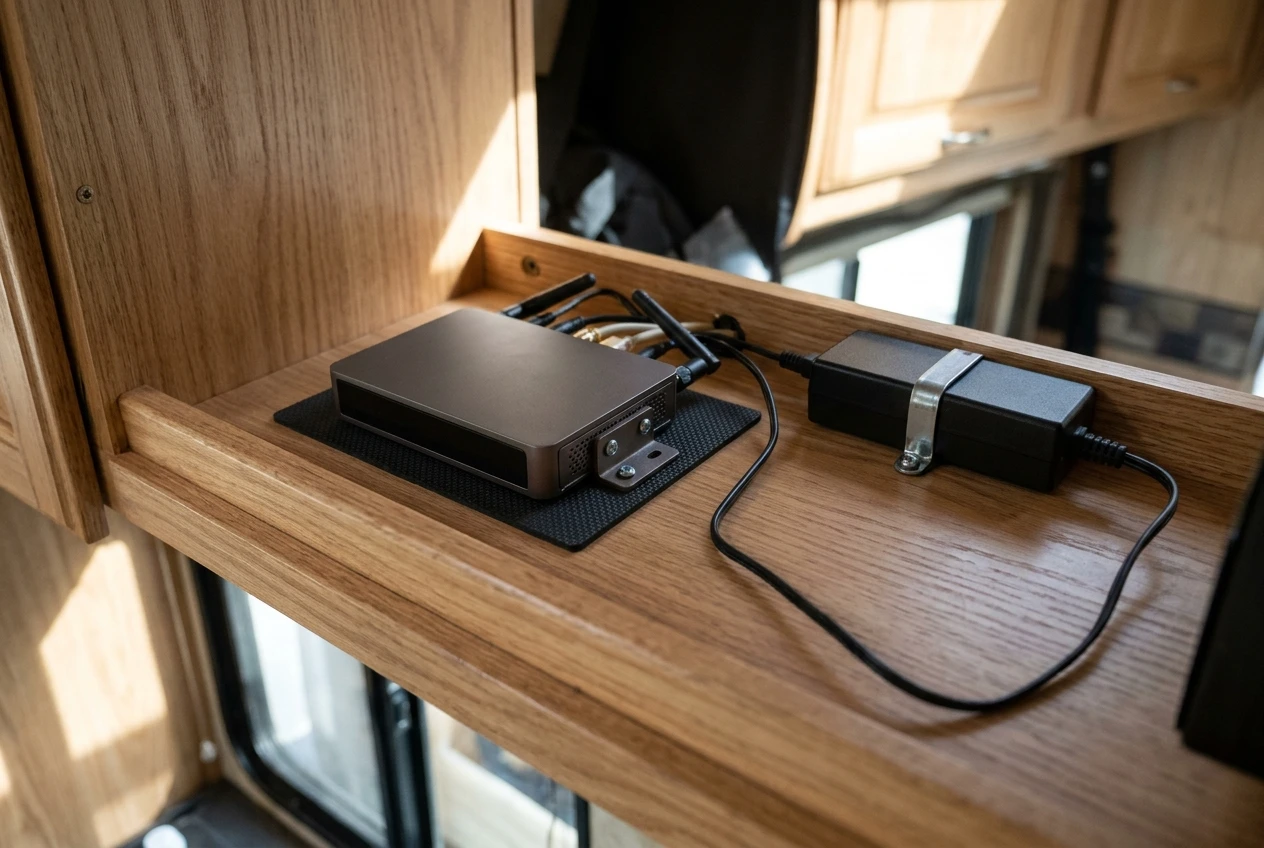
Use screws or a bracket on a hard surface when you can, because adhesive pads and hook-and-loop strips alone can release under repeated vibration. If you use straps, add a physical stop such as a lip or rail so the device cannot slide even if the strap loosens. Rubber isolation under the device reduces how much shaking reaches it.
Heavy power bricks deserve their own support. A brick dangling from a cable pulls on the connector it plugs into, which is one of the most common ways a port works loose. Fasten the brick down so the cable carries no weight.
If you leave the router running while driving, for example, so a passenger can use a hotspot, make sure it has airflow in its mounting spot. Heat in enclosed cabinets is covered in the workstation cooling guide mentioned earlier.
Antennas
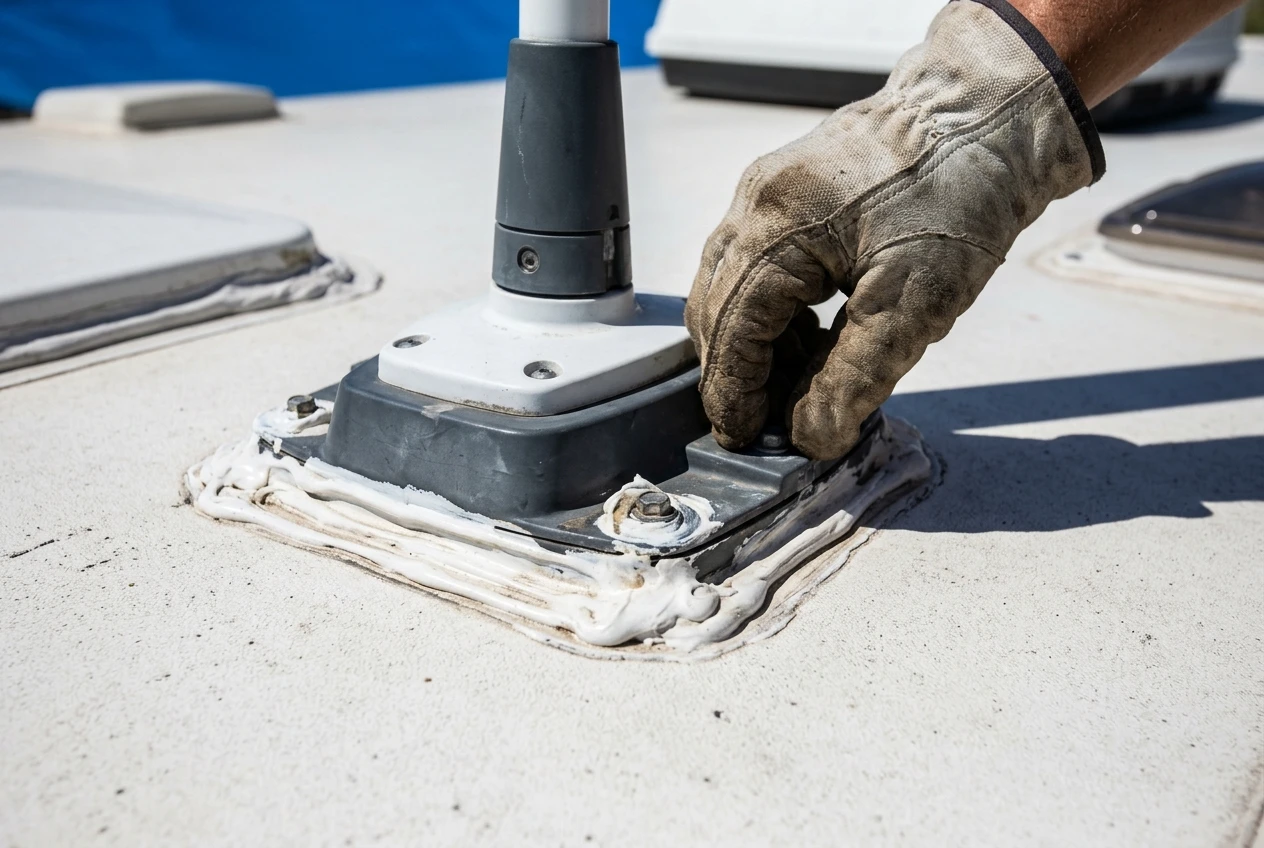
Roof and pole antennas take the most punishment because they face wind and rely on a few bolts. Check the mounting hardware against the manufacturer’s instructions, and look at the base and any sealant around it for cracks or gaps. If the antenna can fold down or retract, do that before you drive, and confirm it before you start the engine.
For portable antennas and satellite dishes, stow them in their cases, not loose in a bay. If your dish has a stow function, use it and wait for it to confirm before you move. The cable that comes off the antenna should have slack and support near the connector so the connector does not carry any load.
What should you check at connectors and ports after every drive?
Look at every connection that carries data, power, or signal, because a connector that loosened in transit can look fine and still fail later. This section covers the ends of the cables, where they meet the device, and not how the cable runs between them.
Check these after you park:
- USB and USB-C ports, for plugs that sit loosely or tilt in the socket.
- Power connectors, including barrel plugs, laptop chargers, and 12V plugs, for any wobble or discoloration.
- HDMI and DisplayPort, for plugs that have backed out slightly.
- Ethernet, for a latch that no longer clicks or a plug that moves in the jack.
- Antenna connectors, for loose threads. Snug them by hand and follow the maker’s guidance, since overtightening can damage them.
- SIM trays and memory card slots, for anything that shifted.
- Power strips and surge protectors, for plugs that worked partway out.
Gently push each plug to confirm it is fully seated. Watch for bent pins, cracked housings, and plugs that feel warm after use, since each indicates a connection that is not making full contact. Intermittent drops that appear a day or two after a drive often trace back to one of these.
What does a pre-drive hardware routine look like?
A pre-drive routine is a short, repeatable sequence done in the same order every time, so nothing gets skipped on a busy moving day. Work from the most delicate items to the most durable, and finish with a walk-through of the office space.
- Run and verify your backup. Do this the day before if possible, so drives are idle on moving day.
- Shut down the laptop and any storage devices. Do not rely on sleep. Wait for spinning drives to stop.
- Eject and disconnect drives. Place them in padded cases.
- Remove monitors from stands and arms. Pack them with padding, or lock permanently mounted arms.
- Stow the laptop flat and padded, away from heavy items that could shift onto it.
- Clear the desk. Put mugs, lamps, webcams, microphones, and small items in drawers or bins.
- Check router and modem mounts. Confirm they are screwed down or strapped with a stop, and that power bricks are supported.
- Fold, retract, or stow antennas and dishes. Confirm each one before you move.
- Inspect connector seating at every device that stays connected.
- Walk the coach once. Look for anything that could slide, tip, or fall, and secure it.
After you arrive and level the RV, reverse the process. Set up the router and antennas first, so you have connectivity, then run the connector check, and only then unpack drives and screens. If something misbehaves in the first few minutes, a loose connector is the most likely cause and the quickest to check.
To learn more about me, click here!







Recent Comments