
How to work remotely with slow internet in an RV: set up your apps before you lose signal. Make key documents available offline, let email and chat sync in the background, lower your video call quality, and queue large uploads for your best signal windows. A short audit before each move shows which tools will fail first.
Which SaaS tools break first on a high-latency connection?
The tools that break first are the ones that send a constant stream of small requests and wait for each answer. Real-time collaborative editors, browser-based design and whiteboard apps, cloud-hosted desktops, and video calls all fall into this group.
Bandwidth and latency are separate problems. Bandwidth is how much data moves per second, and latency is how long each request waits for a reply. A weak cell signal usually brings both, and it also brings dropped connections, which hurt any app that does not save its work locally.
Tool type | Why it fails | What to do |
|---|---|---|
Collaborative editors | Every keystroke syncs live, and a dropped connection can block editing | Enable offline editing and open the file before you lose signal |
Browser-based design and whiteboards | Heavy pages and constant autosave | Work in a desktop app or export a local copy |
Project boards | Page loads are large, and edits are rejected without a connection | Batch your updates and keep a local log |
Video calls | Continuous two-way streaming | Lower quality settings, or join audio only |
Cloud file sync | Large uploads stall and retry | Schedule uploads for good signal |
Email and chat | Usually tolerant, but attachments and previews add load | Turn off auto-downloads and previews |
Your own list will differ from this one, which is why the next step is to check your actual tools.
How do you audit your daily apps before you lose signal?
Run a short test of every app you use in a normal workday, and do it while you still have a good connection so you can fix what you find. The test takes about an hour the first time and far less after that, because you only re-check what changed.
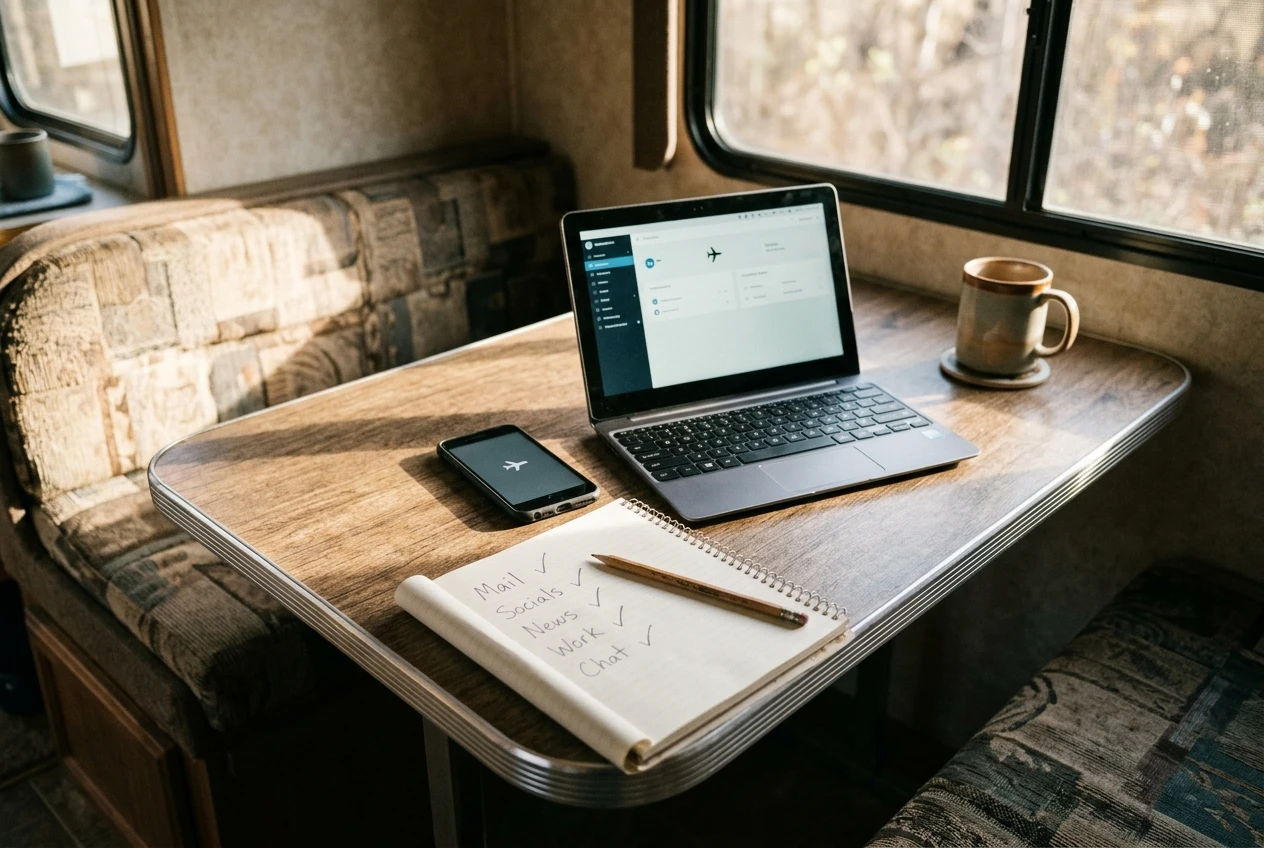
- List your tools. Look through your taskbar, browser history, and phone home screen for everything you opened in your last full week of work. Include the small ones, such as your password manager, calendar, and time tracker.
- Cut the connection. Turn on airplane mode, or switch off Wi-Fi and cellular data on your laptop and phone.
- Try your normal tasks. Open each app and do what you would do on a real workday: read a document, edit a note, write an email, check a task.
- Record what happens. Mark each app as works offline, works partly, or fails.
- Assign a fix or a fallback. Partly working apps usually need a setting changed. Failed apps need a fallback, covered later in this article.
Also check how each app behaves on a slow connection rather than none at all. You can simulate this by switching your laptop to a metered connection, which both Windows and macOS offer in some form. That setting often delays updates and background transfers, which is what you want when signal is thin.
How do you make documents, notes, and files work offline?
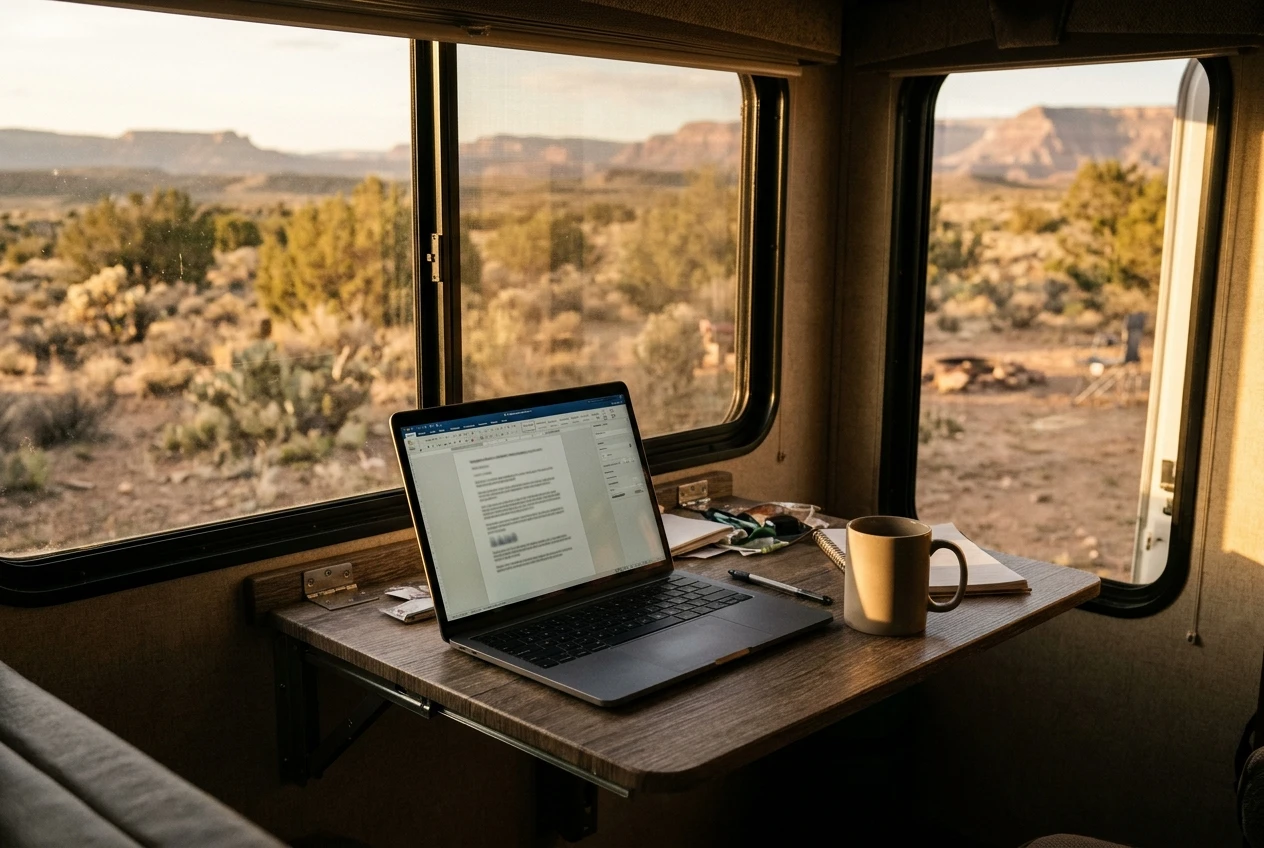
Make a file available offline by marking it to be stored on your device while you have good signal, then confirm it opens with the connection off. Most cloud storage services and document editors have an option along the lines of “available offline” or “keep on this device,” though the wording varies.
Start with a single folder for everything you need in a normal week, and set the whole folder to stay on your device. This is easier to maintain than marking files one at a time. Reference material belongs in it too: client briefs, style guides, templates, contracts, and any wiki pages you consult often. If a reference lives inside a web tool that has no offline mode, export the pages you need as PDFs.
A few points save trouble:
- Check the sync status before you leave Signal. A file that shows a cloud icon may be only a placeholder, with nothing stored on your machine.
- Avoid editing the same file as a coworker while offline. Changes made offline are merged when you reconnect, and two people editing the same section can create conflicts.
- Keep notes in an app that stores them locally. Notes you can read and write with no connection are worth more than a notes tool with better features that needs a page load.
- Set up your two-factor codes carefully. Codes from an authenticator app are generated on your phone and need no signal, while text-message codes depend on the same weak signal you are trying to work around.
- Confirm your password manager opens offline. Many cache an encrypted copy of your vault locally, but test it in your own setup, because a locked-out vault stops all other work.
How should email, chat, and project boards sync on a weak signal?
Set each of them to sync only what you need, and make everything else wait until you choose to load it. The aim is for incoming messages to arrive as small text, with the heavy parts held back.
Use an email client that keeps a local copy of your recent mail, so you can read and write with no connection. Limit how many days of mail it downloads, and turn off automatic downloading of images and attachments. Your replies will sit in the outbox until a connection returns. Check that your client does this rather than showing an error, and use scheduled send for anything time-sensitive so it leaves at a time you pick.
Chat
Chat apps load a surprising amount besides text: link previews, animated images, inline videos, and avatars. Turn off automatic previews and media loading where the app allows it. Set notifications to direct mentions and direct messages only, and mute high-traffic channels. This reduces the constant trickle of data and makes it easier to see what actually needs a reply.
Project boards
Project management tools tend to be the weakest offline, because they are built as web pages that expect to talk to a server. Treat them as a place you visit at set times rather than a screen you keep open.
Keep a plain text file with the updates you need to make, such as tasks finished, comments to post, and new items to add. Then enter them all in one session when your signal is good. If your tool can export a board or task list to a file, export it before you move to a weak-coverage site, so you can still see your priorities.
What settings make video calls usable when bandwidth is thin?
The most effective change is to reduce how much video your connection has to carry. Video is the greatest demand any call places on your connection, and audio alone needs far less.
Adjust these settings before the call, not during it:
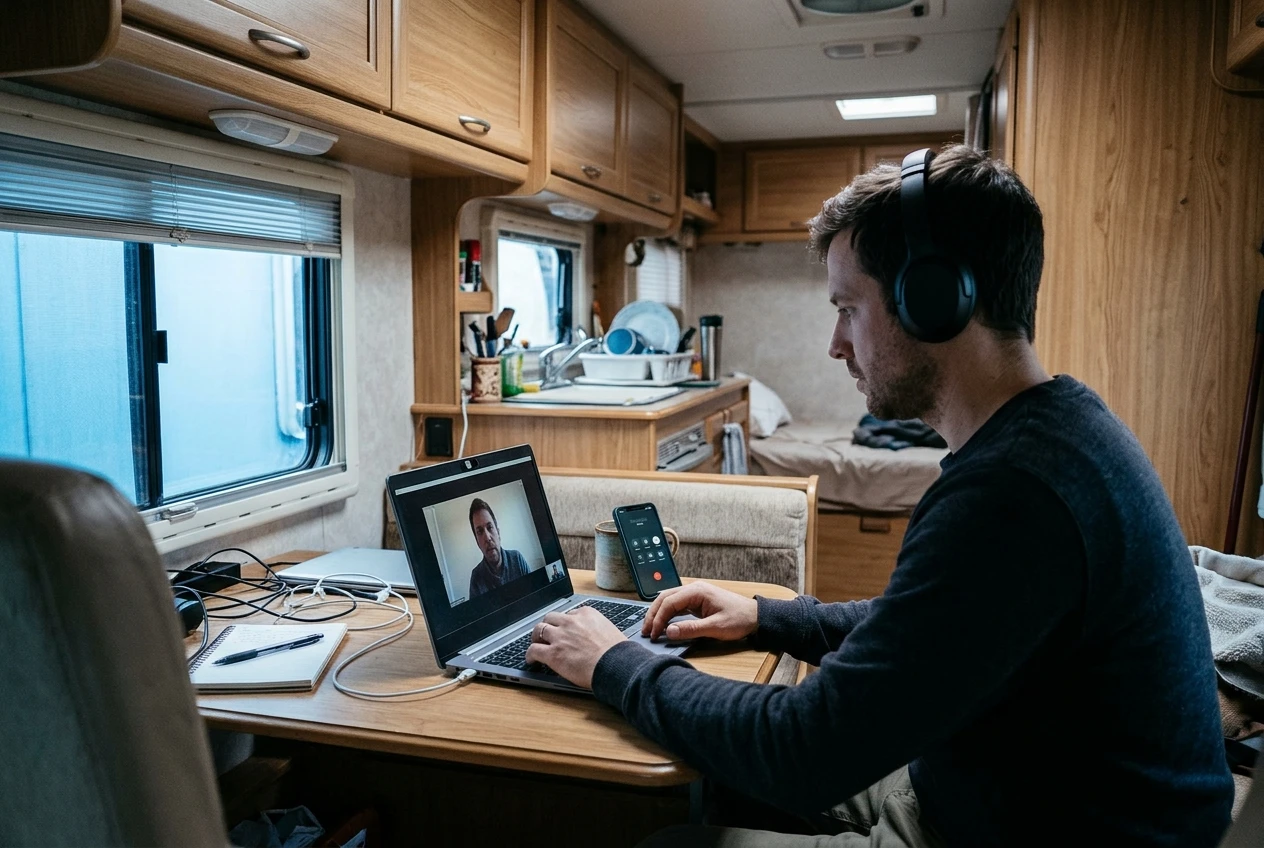
- Turn off HD video. Most call apps have a setting for this in their video options.
- Switch to speaker view. Gallery view with many video tiles asks your connection to receive many streams at once. Some apps also let you stop incoming video entirely.
- Disable virtual backgrounds and blur. These add processing load on your computer, and some of them can lower video quality further.
- Pause cloud sync and updates. A file upload running in the background competes with your call for the same limited connection.
- Close other tabs and apps. Each one may be using the connection without you noticing.
- Know the dial-in number. Most meeting platforms offer a phone number to join audio only. Keep it with your calendar invite, so you can switch to it if the video drops.
Camera-off is a normal choice on a weak connection when you say so at the start of the call. A clear voice with no video is better than a frozen face with broken audio. If you want to see how your lighting and microphone setup affects the calls you do take on video, our piece on microphone and lighting setup for better RV video calls covers that side.
How do you schedule heavy uploads and updates around your best signal windows?
Find the times of day when your signal is strongest at your current site, then run large transfers only in those windows. Signal quality at a campsite often changes through the day as more people use the same cell tower, so the best time is something you have to measure.
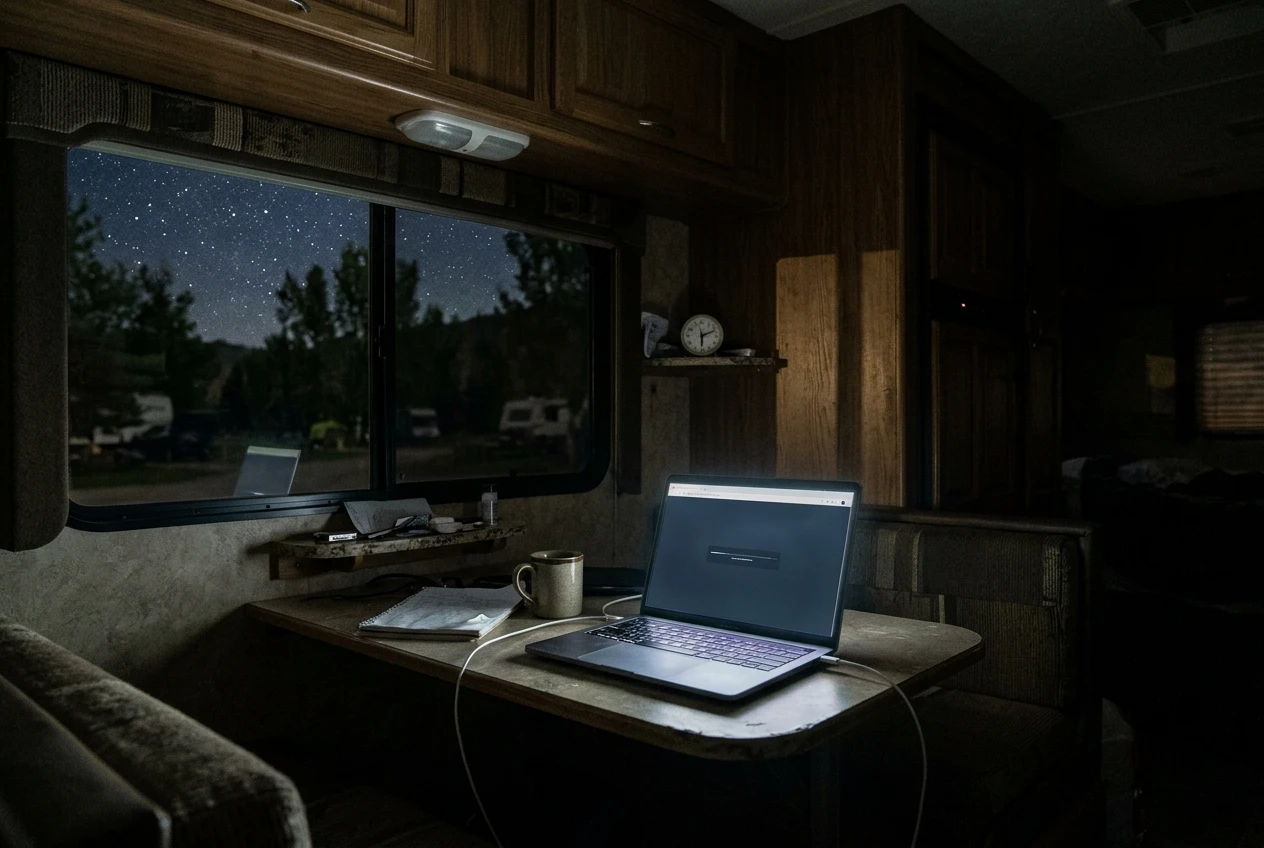
For your first two or three days at a new site, run a speed test at several set times, such as early morning, midday, evening, and late night. Write each result with the time in a simple note. A pattern usually appears, and you can plan around it.
Then apply the pattern:
- Queue the heavy work. Large file uploads, video exports, backups, and photo syncs go in the strongest window, or overnight if that is when the connection is best.
- Set updates to manual. Operating systems and many apps check for updates on their own. Switch this to manual or to “download on Wi-Fi only,” then update in your good window.
- Shrink files first. Compress folders, reduce image sizes, and export video at a lower resolution before uploading. A smaller file finishes sooner and is less likely to fail partway.
- Use tools that resume. If a transfer stops and starts over from zero, a weak connection will waste hours. Prefer tools that pick up where they left off.
- Keep deadline work out of the queue. Anything due at a fixed time should go at the start of your best window, with extra time left in case it fails.
What is a fallback plan when a tool simply will not load?
A fallback plan is a decision you make in advance about what to do when a specific tool is unavailable. Writing it down before the problem happens means you spend your attention on the work, not on troubleshooting.
Build the plan in layers:
- Try a lighter version of the tool. A phone app or a basic mobile page often loads faster than the full desktop interface, though this varies by product.
- Switch the channel. If a chat app will not load, send a short email. If email is slow, a plain text message may still get through.
- Move to offline work. Keep a list of tasks that need no connection: drafting, editing, spreadsheet work, reading, outlining, and planning. When a tool fails, start the next item on that list.
- Change your location. Sometimes a short drive or a trip into town gets you to a better signal. Know in advance where you would go and how long it would take.
- Tell people early. A short note sent as soon as you know there is a problem works better than silence. Something like: “My connection is unreliable today. I will send the draft by 4 p.m. and reply to messages in batches.” Our article on managing client expectations when your signal fluctuates goes further into this side of the problem.
What belongs on a pre-travel checklist for fringe-coverage campsites?
Run this list the day before you move, while you still have a reliable connection. Each item is something you can check and finish in a few minutes.
- Sync your offline folder and confirm that key files open with airplane mode on.
- Open your notes, password manager, and calendar offline to confirm they work.
- Set email to download only recent messages, with images and attachments off.
- Turn off link previews and media autoplay in chat, and limit notifications to mentions and direct messages.
- Export your task list or project board, and save any reference pages as PDFs.
- Set operating system and app updates to manual.
- Install and sign in to the phone apps for your most important tools.
- Set your call app to standard-definition video, speaker view, and no virtual background.
- Save the dial-in numbers for your upcoming meetings.
- Move any large uploads or backups you can finish before you leave, and queue the rest for a good window.
- Write down your fallback plan, including the offline task list and your message for colleagues or clients.
- Plan your speed tests for the first days at the new site, so you can find your best windows early.
After your first stay at a fringe-coverage site, update the list with whatever failed, so the next move starts from a better version.
Thanks for stopping by!







Recent Comments