
The best monitor setup for RV office is one external screen added to your laptop, either a portable panel that stands on the desk or a lightweight display on a VESA arm. Dual screens suit work that keeps two full documents open side by side, but only if the desk, battery, and travel-day routine can handle the extra weight.
Which monitor setup works best in an RV office?
For most people who work full time from an RV, a single external monitor beats both a lone laptop screen and a dual setup. It adds real working space, draws little power, and takes a few minutes to secure before driving. The right choice among the three options depends on your work and your desk.
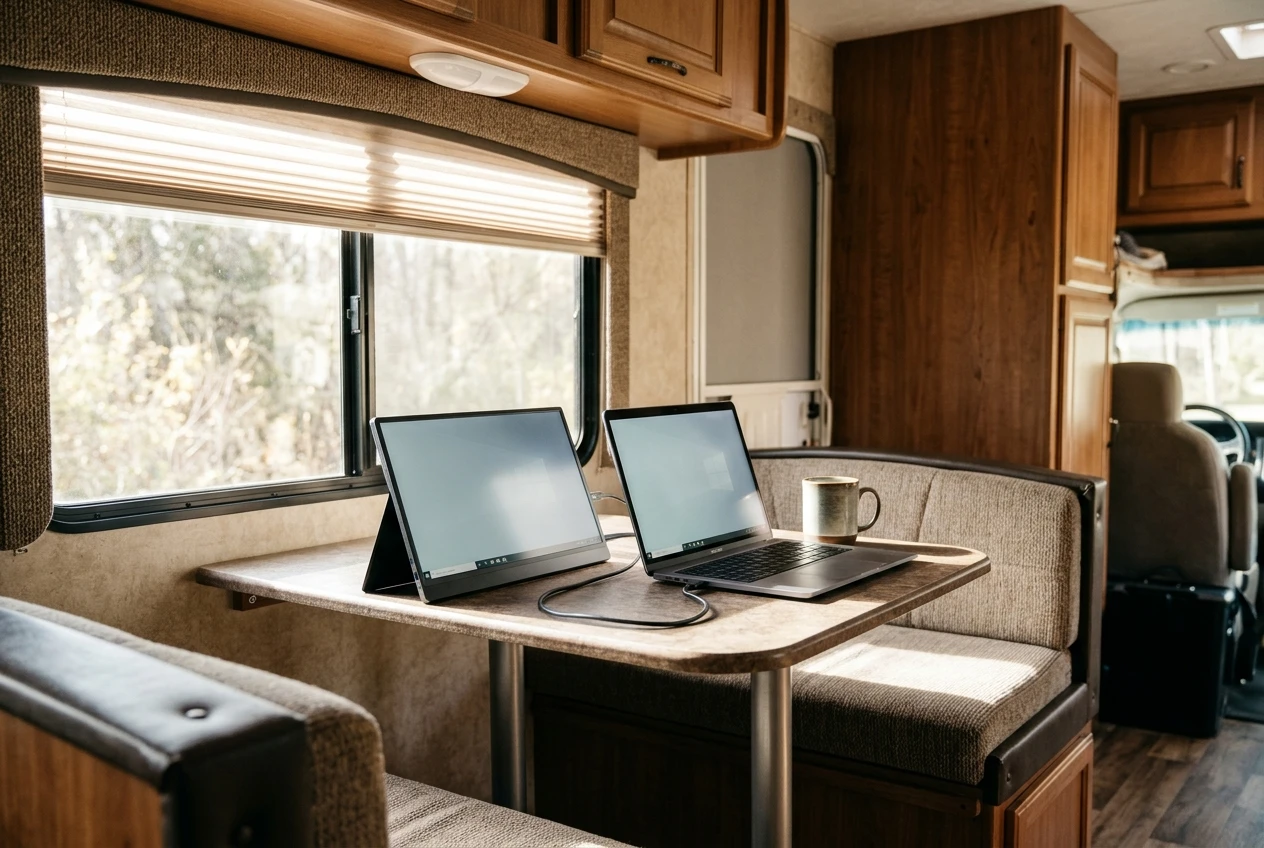
Portable screen Mounted display Dual setup Vibration risk Low when packed flat, higher if left standing Depends on the mount and how well it locks Highest, since there are two screens and two mounts Power draw Lowest, often powered over USB-C Moderate, usually runs from a wall adapter or inverter Highest Glare control Limited, since it moves with you Good, because you can tilt and fix the angle Harder, since two panels catch light Desk footprint Small, and it can leave the desk entirely Small if the arm clamps to the desk edge Large unless both are arm-mounted Time to stow Under a minute A few minutes The longest
A portable screen suits anyone who shares the workspace with a dinette or has no permanent desk. A mounted display suits a fixed desk where you sit at the same angle every day. A dual setup makes sense for work like spreadsheet reconciliation, video editing timelines, or customer support with several tools open, where switching windows costs real time.
How much screen space does your work actually need?
Your work needs the amount of screen space that lets you stop switching windows for your most frequent task. Count how often you flip between two applications each hour. If it is constant, a second screen pays off quickly.
Roles tend to fall into three groups:
- Writing, email, calls and browser work: a laptop plus one external screen is enough. Put the video call on the laptop and your documents on the monitor.
- Spreadsheets, design review and development: one larger external screen, or one external screen with the laptop as a second, covers most of it.
- Editing, trading or multi-tool monitoring: two external screens are justified, and the desk, power and stow plan should be designed around them from the start.
Screen size matters less than it seems, because the desk limits you. A large panel on a narrow RV desk pushes the display too close to your eyes and leaves no room for a keyboard. Measure the depth of your desk before you buy anything, and leave enough distance that you can read the screen without leaning forward.
Keep resolution matched to the laptop where you can. Mixing a very sharp laptop display with a lower-resolution external screen makes text scaling awkward, and windows change size when you drag them across.
What makes a monitor survive road vibration?
A monitor survives road vibration when it is light, supported at several points, and not left standing while the RV moves. Most damage comes from the panel flexing or from a heavy screen swinging on a mount, not from the electronics.
The factors that matter most:
- Weight. A lighter screen puts less load on a mount and on your cabinet or wall. Heavy displays loosen fasteners over time.
- Panel construction. Thin portable panels have little protection on their own. Use the cover or sleeve that fits them, and store them flat against something rigid.
- Mount type. A clamp-on desk arm can work loose on rough roads. A mount with bolts through a solid backing holds better than one that relies on a clamp alone.
- Connector strain. A cable plugged into a screen that shifts in transit can damage the port. Unplug before travel.
Screens are most at risk while the RV is moving, so the safest approach is to take the monitor off the mount, or fold and lock the arm, and store the panel in a padded spot. Check the manufacturer’s guidance for your model, since weight limits and mounting patterns differ.
How much will a monitor add to your RV power setup?
A monitor adds a modest but real load to your RV power setup, and the exact figure is on the label or spec sheet of the model you own. Look for the wattage rating, and be aware that brightness settings change what the screen actually draws.
To estimate the effect, multiply watts by hours of use. As an example only, a screen drawing 20 watts for 8 hours uses 160 watt-hours. Replace the 20 with your monitor’s real figure. Do the same for the laptop and router, and you can see what share of the day’s battery the screen takes.
Some practical points:
- USB-C portable screens usually pull power from the laptop, which shortens laptop battery life if you are working unplugged. A separate power source for the screen avoids that.
- Mains-powered monitors need an inverter or shore power, and the inverter itself uses some power when idle.
- Lower brightness reduces draw, and in an RV with lots of daylight, a matte screen at moderate brightness often does the job.
- Sleep settings matter. Set the screen to turn off when the laptop locks so it is not lit during breaks.
If you work off battery for long stretches, the monitor is one part of a bigger budget. The piece on portable power stations for off grid RV work covers how to size the supply behind it.
How do you mount a monitor in a small RV workspace?
The most reliable way to mount a monitor in a small RV workspace is a VESA arm fixed to a solid structure, with the screen kept as light as possible. Check what is behind the surface before you drill, since many RV walls are thin panels with little to hold a screw.
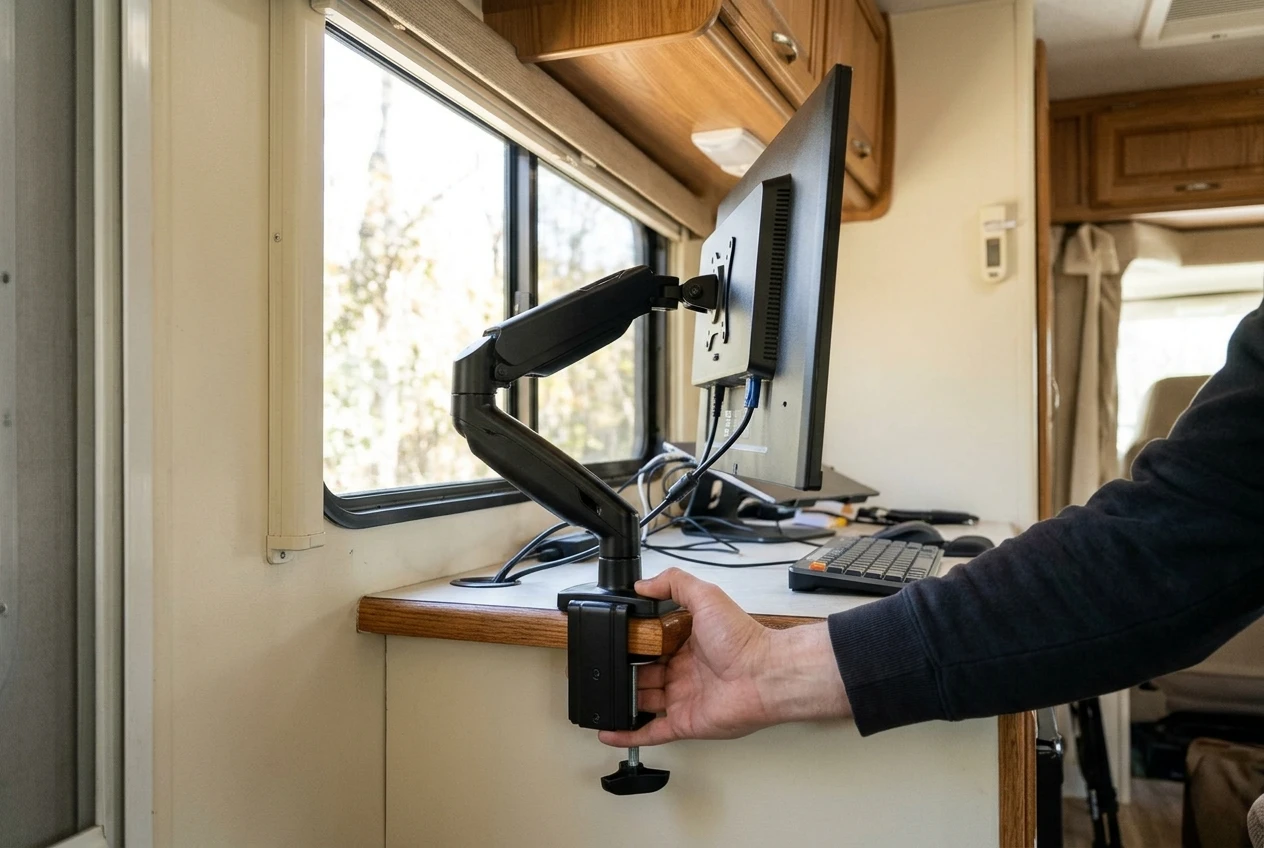
There are three common approaches:
- Desk-edge clamp arm. It needs no drilling and suits a desk with a solid, thick edge. Test it by pressing on the arm firmly. Any movement at the clamp will get worse on the road.
- Wall or cabinet mount. It frees desk space but needs a backing board or a located stud. Confirm cable routes and clearance with slides or doors.
- Freestanding stand or riser. It is easy to remove for travel, and it works on a dinette table. The downside is that it takes up desk space and must be stowed separately.
Whichever you choose, set the screen so the top edge is at or slightly below eye level and the panel is roughly an arm’s length away. Tilt it to avoid reflections from windows. In an RV, there is often a bright window beside or behind the desk, so position the screen at right angles to the window instead of facing it.
A matte screen cuts reflections more than a glossy one. If you are choosing between models, this matters more in an RV than in a typical home office, because light shifts as you change campsites and the RV changes direction.
Which cables, ports and settings keep the setup simple?
The simplest setup uses one cable between laptop and monitor, short enough that it cannot snag and long enough that the screen can move without strain. A single USB-C cable that carries both video and power is the cleanest option, provided your laptop and monitor both support it.
Check these before buying:
- Laptop port support. Not every USB-C port carries video. Look for DisplayPort Alt Mode or Thunderbolt in the laptop’s specs.
- Power delivery. If the monitor charges the laptop over the same cable, check that the wattage is enough for your laptop under load.
- Cable length. Choose the shortest cable that works. Excess cable swings and tangles in transit.
- Right-angle connectors. They put less strain on ports and sit flatter against a wall.
- Backup cable. A spare of the same type avoids a stalled workday if one fails.
For settings, keep them consistent so you do not rebuild the layout every time you set up:
- Save a display arrangement in your operating system so the external screen is positioned correctly relative to the laptop.
- Set scaling once and leave it.
- Turn on automatic sleep for the external screen.
- Lower the brightness and turn on a night mode for evening work, which also saves power.
If you use a dual setup, a dock can reduce the number of plugs to one, but it adds another device to secure and power.
How do you stow your monitors before a travel day?
You stow your monitors by shutting them down, disconnecting cables, removing or locking the screen, and placing it in padded storage where it cannot slide. Do this in the same order every time so nothing gets missed on a travel morning.
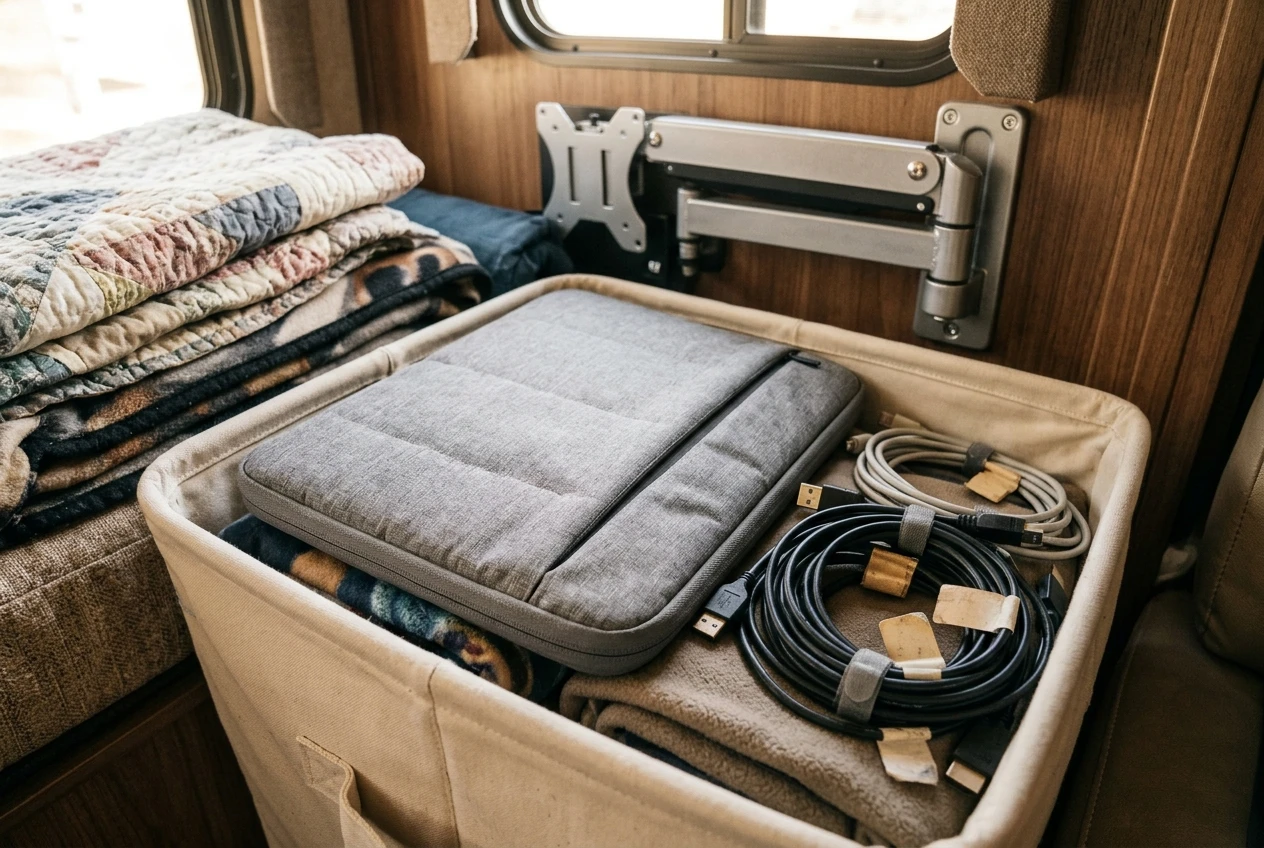
A simple sequence:
- Save your work and shut down the laptop.
- Unplug video and power cables from the monitor first, then from the laptop.
- Remove the monitor from its arm or stand. If the arm stays, fold it fully and lock it.
- Place the monitor in its sleeve or original padding, screen facing a flat, rigid surface.
- Store it upright or flat in a spot where nothing heavy can press on the panel, such as between bedding or in a cushioned bin.
- Coil cables loosely, label them, and keep them with the monitor.
- Wipe down the desk and stow the stand or riser.
A portable screen is the quickest to put away, because it can slide into a bag with the laptop. A mounted display takes longer if you remove it each time, so some people leave a lightweight screen on a locking arm and secure it with a strap. Whether that is safe depends on the mount and the roads you drive, so choose the more cautious option when unsure.
Do a quick check at your first stop after a travel day. Look at the mount fasteners, the clamp, and the cable ends, and tighten anything that has shifted. A loose bolt found at a campsite is a minor fix. One found after another day of driving can mean a cracked screen.
There is another option that I like that is a bit more non-permanent, but it allows two smaller screens that are each side of the main laptop screen. Check out this tri-screen solution to see if this might work for you, too!







Recent Comments